


 ChatGPT
 Gemini
 AI Overviews
 Perplexity
 Claude


 You
 Origin Investments
 Ashcroft Capital
Verand needs a connection to your site for two reasons: to read your existing pages (which is what the crawl, your scores and your opportunities are all built on), and to publish drafts back once you approve them.
There are two connection types, WordPress and git-based static sites, plus an optional plugin for WordPress sites built with a page builder.
Connecting never changes anything on your site. It verifies the credentials and checks what's reachable. Publishing is always a separate, deliberate action.
You'll find all of this at Settings → Integrations.
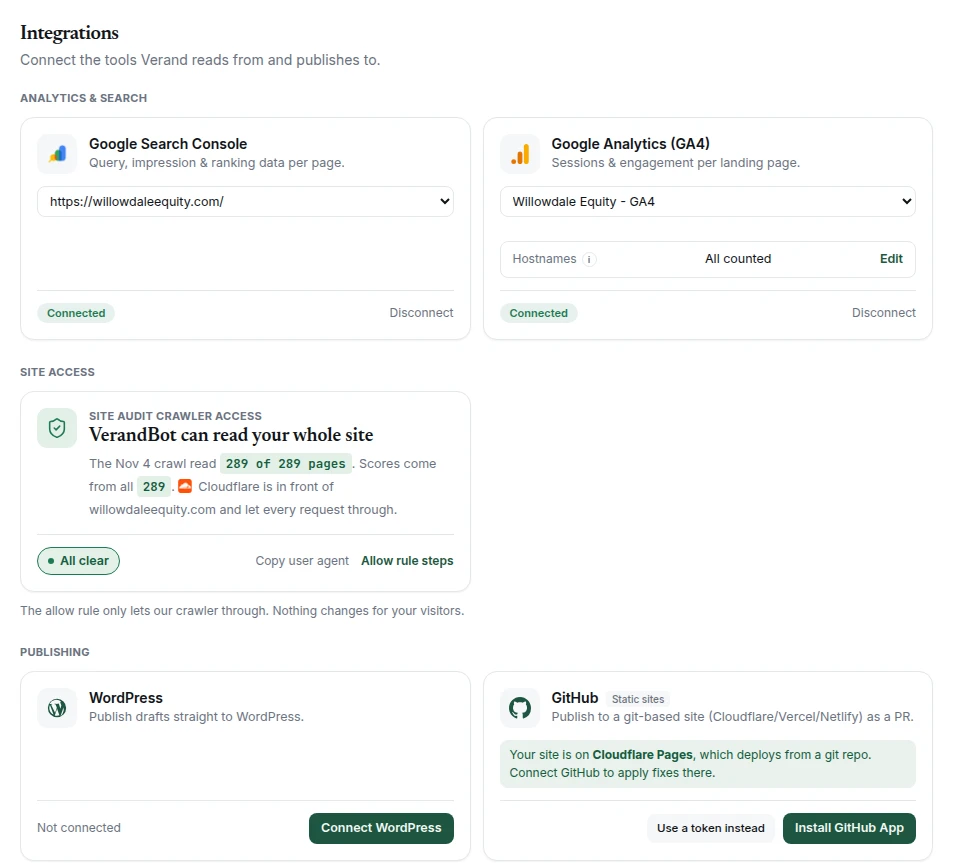
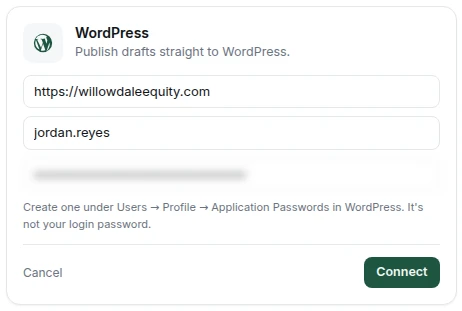
WordPress
You'll need three things:
- Your site URL:
yoursite.comis fine - Your WordPress username
- An Application Password
The Application Password is not your login password. Create one inside WordPress at Users → Profile → Application Passwords. WordPress generates a long string specifically for external tools, and you can revoke it later without touching your own login. Paste that into Verand.
If your site is behind a firewall, or a security plugin blocks the WordPress REST API, the connection check will tell you rather than failing silently later.
What happens when you publish
You choose how it goes out. The WordPress menu in the editor (Publish to WordPress on a new article) has three choices:
- Save as draft: the article lands in your normal WordPress drafts list, and you publish it there when you're ready.
- Publish now: it goes live on your site straight away.
- Schedule…: pick a date and time, and WordPress publishes it then. The time is in your WordPress site's timezone, not your own, so check which one your site uses (WordPress Settings → General). If you edit the article after scheduling it, Reschedule… sends the new version. Revert to draft cancels the schedule. You can also place an article on a day in the Content calendar on the Articles tab, which shows the drafts and scheduled posts you made inside WordPress too.
Whichever you pick, the compliance gate runs again at that moment, and nothing goes out without a person choosing it.
Publishing a refresh or full rewrite. The menu shows Update the live page instead. It replaces that page's content and keeps its address and publish date. A refresh can't be saved as a draft or scheduled, because either would take the live page offline. If Verand made a new hero image for the draft, Hero on the live page lets you Keep current or Use the new one (the default), and the page only ever shows one of them. The GitHub menu has the same choice.
Once it's live, the editor links to it. When the post is published, from Verand or inside WordPress, the editor shows View live page next to your site's name, and it's the first link in the WordPress menu. Verand takes the address from WordPress itself. Preview shows only while the post is still a draft or scheduled.
Verand follows what you do in WordPress. If you switch a live post back to a draft, make it private, reschedule it, or move it to the trash inside WordPress, Verand notices the next time you open the article. View live page goes away, the WordPress menu shows where the post stands (for example "Draft in WordPress" or "Not in WordPress any more"), and the article moves from Published back to Ready (or In review, if a compliance check blocks it now). A post that's trashed or deleted keeps its Verand status, and publishing again puts it back. If WordPress can't be reached when you open the article, nothing changes.
Verand checks what your WordPress supports
On connect, Verand probes the site once: which editor it uses, whether custom fields are reachable, and whether an SEO plugin owns the meta description rather than WordPress itself. What it finds changes how the post is written, so an SEO plugin's title doesn't get quietly ignored and a page builder doesn't receive a raw block of HTML.
The Verand Connector plugin (optional)
If your WordPress pages are built with a page builder, Elementor especially, the standard WordPress API isn't enough. A page builder stores its content in its own data model, and writing to the usual post content field either does nothing visible or damages the layout.
The Verand Connector is a free WordPress plugin that solves this. Verand decides what should change; the Connector applies it inside WordPress using the page builder's own data model, so the layout survives.
Pages built with Divi, Beaver Builder or WPBakery can't be edited from Verand yet, with or without the Connector. Divi and WPBakery keep the layout as shortcodes in the post content, where an edit can break it, and Beaver Builder keeps it somewhere the post content doesn't reach, so an edit would never show. Verand checks each page before it changes the content, and on one of these it tells you which builder it found and changes nothing: make that change in the builder. Search titles and meta descriptions still work on those pages, and so do canonical, social preview text and page schema through the Connector, because none of them is part of the layout.
Install the plugin, open its Verand page in WordPress, and copy the pairing token into Verand.
You need it if you're on a page builder, or if your SEO plugin is Yoast, All in One SEO or SEOPress: those keep the meta description and search title in their own fields, which WordPress doesn't let an outside app reach, and the Connector writes them there for you (Rank Math works without it). With the Connector, a title fix changes only the search title, never the page's visible headline. It also sets a page's canonical, its social preview text for Facebook, LinkedIn and X, and makes a page visible to search again when you tell Verand it shouldn't be hidden. On any WordPress site it also lets Verand add site-wide schema (Organization, LocalBusiness) to every page, add page schema without WordPress stripping it, and redirect a dead address to a live page. Broken links, image alt text, link labels and main headings are fixed without it on a standard theme, and through it on Elementor pages, where version 1.5.0 or later also changes Elementor heading widgets and button text (1.6.2 or later for Elementor 4's newer Heading widget), 1.6.0 or later rewrites a paragraph you've approved and adds your sitemap to robots.txt, and 1.6.3 or later removes a paragraph that is only a banned claim, when you approve it. With 1.7.0 or later, updating a live page with a Content Refresh also moves social preview text that was a copy of the page's old title or description to the new ones (social text you wrote on purpose is kept, and a page using your SEO plugin's defaults keeps them), and brings the schema Verand added up to date: the FAQ lists the page's new questions and the Article shows the refresh as its last-modified date. Without the Connector, Verand can't see that social text, and the update tells you so.
Keep it up to date. From version 1.3.1 the Connector updates like any other plugin: WordPress shows Update available on the Plugins screen when a new version is out, and you update it in one click, or turn on Enable auto-updates for the Connector and WordPress does it for you. On an older version, upload 1.3.1 once: Settings → Integrations → WordPress links it, then in WordPress go to Plugins → Add New → Upload Plugin and choose Replace current with uploaded. That's the last manual update.
Git-based static sites
If your site lives in a GitHub repository and builds to static pages (hosted on Cloudflare, Vercel, Netlify or anywhere else), connect the repository.
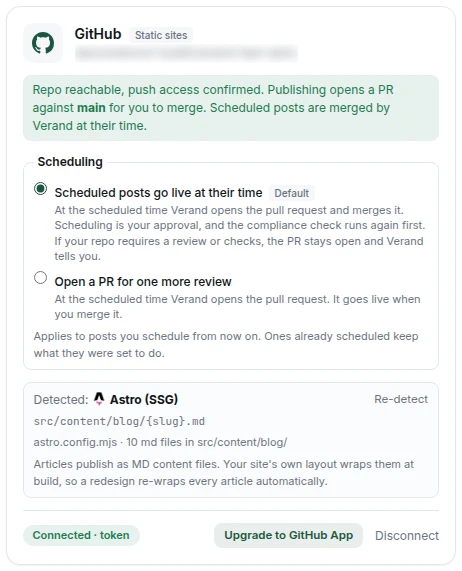
The recommended route is the GitHub App. Install it, grant access to the specific repository, and pick that repo from the list in Verand. No token to manage or rotate.
Adding a second site? If the App is already installed, you don't install it again. The card lists the repositories it can reach, with the one matching this site's domain marked, and you pick this site's repo. Missing a repo? Grant it to the Verand Publisher app on GitHub, then reload.
Or use a fine-grained Personal Access Token if you'd rather. Scope it to only that one repository, with:
- Repository permissions → Contents: Read and write
- Pull requests: Read and write
Verand works out how your repo builds pages
On connect, Verand reads the repository once and figures out how it turns source files into pages. There are three outcomes:
- Recognised static site generator: Astro, Next.js, Hugo, Eleventy, Jekyll, Gatsby and similar. Verand writes a content file with frontmatter matching your existing articles, and your own layout wraps it at build time. This is the cleanest option: nothing about your design is stored in Verand, so your pages can't drift out of sync with your template.
- Pre-rendered HTML pages: Verand derives the page shell fresh from one of your recent articles each time it publishes, rather than storing a template that would go stale. A new article is also added to your
sitemap.xmlin the same pull request, so search engines can find it. When you refresh a page, the blocks your site repeats inside its articles (a newsletter box, share buttons, an author box) are left out of the draft and put back in the same place when you publish. - Not identified: Verand publishes a plain HTML fragment at the path you set, and tells you plainly that's what it's doing rather than guessing.
It also sets the path where articles land. You can override it if Verand gets it wrong. Use {slug} where the article's slug should go.
What happens when you publish
Publishing opens a pull request. When you choose Open a PR, Verand doesn't commit to your live branch. You get a PR to review, with the article and its images in the same commit, and you merge it when you're happy. Scheduled posts are the one exception, and only if you want them to be: see below.
After the merge. Your host rebuilds your site, which usually takes a few minutes. While it does, the editor shows Going live next to your site's name. Once the page loads, that becomes View live page, and it's the first link in the GitHub menu. Verand finds the address by reading your sitemap and the usual blog addresses, and only records a page whose title is this article's. After the first article it remembers your site's address pattern, so the next one is found in a single read. If the page still hasn't appeared 30 minutes after the merge, the GitHub menu says so in one line, with a link to the pull request: check your host's build.
Scheduling a publish
An article you've marked Ready can be scheduled instead of published now: open the GitHub menu in the editor and choose Schedule…, or place it on a day in the Content calendar. You pick the date and time in your own timezone, and the picker names the zone so there's no doubt which one.
At that time, Verand opens the pull request, exactly as Open a PR would, and then what happens depends on a setting in Settings → Integrations → GitHub → Scheduling:
- Scheduled posts go live at their time (the default). Verand merges the pull request straight away, so the article is live as soon as your host rebuilds. Scheduling it is your approval, and the compliance gate runs again at that moment anyway. The pull request stays in your repository as the record of what went out.
- Open a PR for one more review. Verand opens the pull request and leaves it for you. The article goes live when you merge it.
Verand never forces a merge or goes round your repository's rules. If your branch requires a review or passing checks, or the pull request conflicts with your branch, Verand leaves it open and tells you why in the editor and on the calendar, for example "PR #12 opened; your repo requires a review or passing checks before merging, so merge it on GitHub to publish."
Each scheduled article keeps the setting it was scheduled under. If you change the setting later, articles already on the schedule still do what they were set to do, and the editor says so. Reschedule one to give it your current setting. Several articles scheduled for the same minute each get their own pull request.
Once it's out, the article stays on its day in the calendar: Published at 9:00 AM when Verand merged it, or PR #12 open (needs merge) when it's waiting for you. Click it to open the pull request.
Before it sends anything, Verand checks the article again. It only goes out if it's still Ready, its title, description and body are exactly what was there when you scheduled it, it hasn't already been sent, and it passes the compliance gate at that moment. If any of those fails, nothing is sent and the reason shows in the editor and on the calendar, for example "the article changed after it was scheduled". Review it and schedule it again.
You can reschedule or remove a scheduled article from the same menu or the calendar at any time before it goes out. Choosing Open a PR sends it straight away and takes it off the schedule.
Creating your editorial standards or AI instructions page
The Issues tab drafts both pages from your Brand Hub, and you edit them in place (see Site health, issues and Page Tracker). Creating one goes through the same connection as your articles:
- WordPress: a draft page at /editorial-standards/ or /ai-instructions/, through the standard WordPress connection (no plugin needed). You publish it in WordPress. Creating it again updates that draft; a page that's already live is only changed after you confirm a second time, and never with a [bracketed] item left.
- GitHub: a pull request with the page, which goes live when you merge it. Verand won't open it while any [bracketed] item is left. These pages aren't scheduled: open the pull request and merge it when you're ready.
Updating a page you've already published
Publishing puts a new article on your site. A different set of actions goes back and changes a page that's already there: a title or meta description, a canonical, social preview text, a noindex removed (only after you say the page shouldn't be hidden), an answer block near the top, a takeaways list, source citations, an internal link, a broken link fixed or removed, image alt text, a label for an icon link or better words for a "click here" link, one main heading kept and the extra ones turned into subheadings (or a missing one added), a paragraph reworded so it no longer makes a claim your compliance rules flag, a paragraph given a sentence AI answers can quote, your own experience woven into the paragraph where it fits, the disclaimer your compliance pack requires (shown to you in full first), an old copyright year brought up to date, a link to an official source that moved pointed at the document's new address, a different title or description for each page that shares one (after you say they aren't the same on purpose), page schema, or the year-rollover sweep that updates dated references.
Each of these is a targeted edit, not a rewrite. Verand changes the specific thing you approved and leaves the rest of the page exactly as it was. If it can't work out where the change belongs with confidence, it refuses to write rather than guessing at a plausible edit.
On WordPress, category, tag and author listings can't be edited from Verand. WordPress builds those pages from your posts, so there's no page to write a title or description to. The Issues tab shows Copy on those rows instead of applying, and says where to paste it in your SEO plugin: the category's or tag's edit screen, or the author's user profile.
On a Markdown site (Astro, Hugo, Jekyll, Next.js and the like), the change is made in the post's Markdown and its frontmatter is left exactly as written; titles and descriptions are set in the frontmatter. Page schema goes into the post itself (see below).
A note on how these reach a git repo. Publishing a new article opens a pull request. Applying one of these targeted changes commits to your default branch directly, once you've approved it in Verand, because there is no draft state to hold it in. If you'd rather every change to your repository arrive as a PR, don't use the apply actions; publish and edit in your own workflow instead.
The one exception is site-wide schema (Organization, LocalBusiness). It goes in the file that builds every page's head (your layout, or your homepage on a pre-rendered site), which touches every page, so Verand opens a pull request for you to review and merge rather than committing it.
On a site built from Markdown, a page's canonical or noindex can be set only through a field its posts already use; the social preview tags come from your layout, so Verand tells you to add them there once. Page schema (Article, FAQ) goes into the post itself; on Hugo it needs raw HTML switched on in your config, and Verand checks before it writes.
If you haven't connected anything yet
You can still use everything else. Verand reads your site from the public web for the crawl, your scores and your opportunities, so nothing depends on a connection being in place.
To get an article out without one, open it and export: Markdown, HTML, Word or PDF, whichever your CMS or editor takes. Exporting your own articles works on every plan, including during a trial.
Which one do I need?
You only need the connection that matches your site. Most customers connect one and never think about it again.
If you run more than one site, each site has its own connection, and connections aren't shared across sites.
The same page also has a Site Audit Crawler Access card under Site access. It shows how much of your site the last crawl could read, and names the host if one blocked Verand's crawler. See AI crawlers blocked by your host for the fix.