


 ChatGPT
 Gemini
 AI Overviews
 Perplexity
 Claude


 You
 Origin Investments
 Ashcroft Capital
Verand can be added to Claude, ChatGPT, Cursor, VS Code and other AI clients as an MCP connector. Once it's connected, you can ask your assistant about your site and it reads the answer out of Verand directly, and you can ask it to start work that would otherwise mean opening the dashboard.
MCP is the Model Context Protocol, an open standard for connecting an AI client to a tool it can use. Verand runs an MCP server, your client connects to it, and everything it does happens as you, with your permissions, on your plan.
Nothing goes live from a chat unless you approve it there. Publishing from an AI assistant, and applying fixes to your live pages, is off until an account owner turns it on, and even then the assistant has to show you the article, or exactly what each fix changes, and get your yes before anything changes on your site. It can never clear a hard-tier compliance block or delete your content: there's no tool for either. More on that below, because it's the part worth understanding before you connect.
Connecting
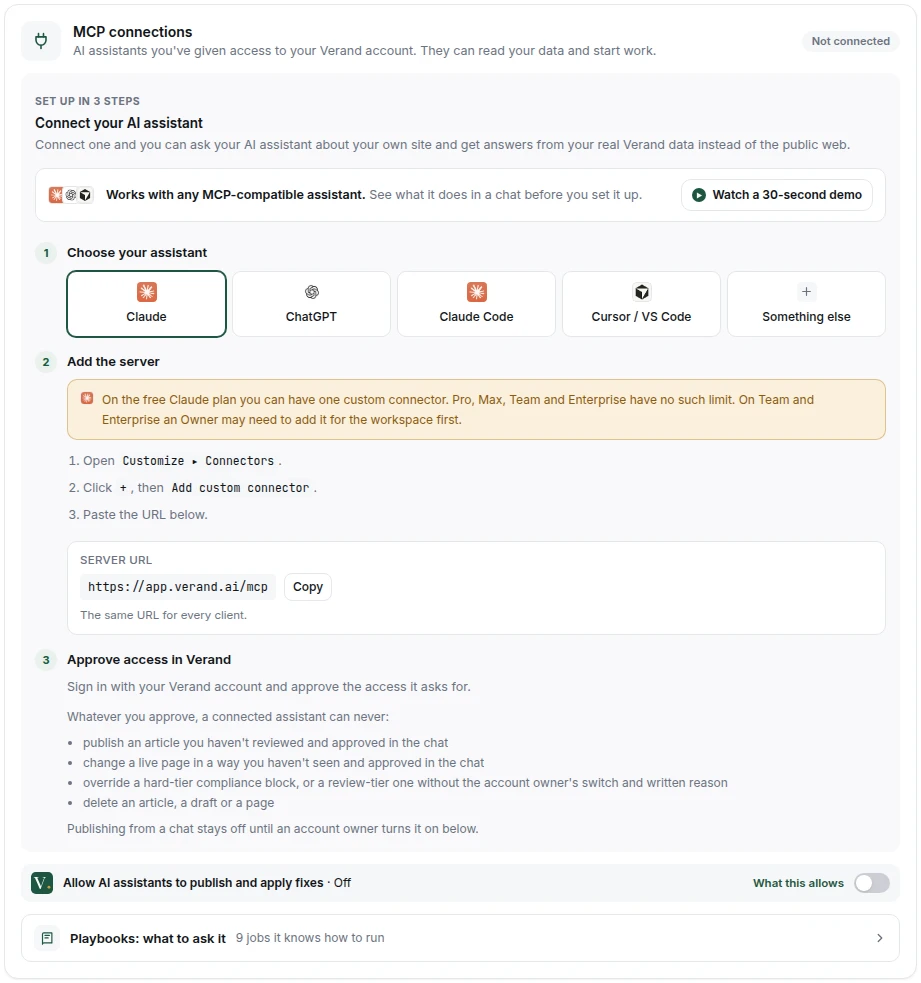
You'll find everything you need at Settings → Integrations, in the MCP connections card. Before anything's connected, the card walks you through three steps:
- Choose your assistant: Claude, ChatGPT, Claude Code, Cursor / VS Code, or Something else.
- Add the server: the steps for that assistant, any plan it needs, and the Server URL to paste, with a Copy button. It's the same URL for every client.
- Approve access in Verand: sign in and approve on the consent screen.
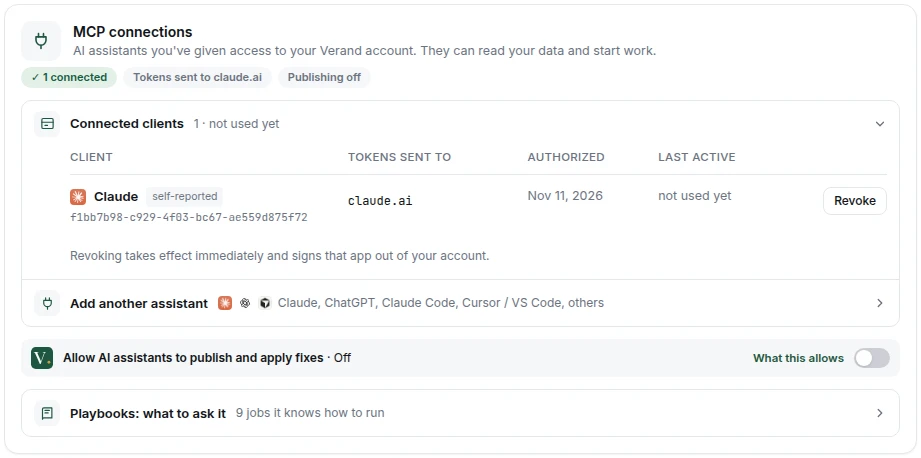
Once something's connected, the card shows a status line and collapsible rows instead: Connected clients, and Add another assistant, which opens the same three steps.
There is no API key. Verand doesn't issue one. Connecting opens a sign-in and a consent screen, which is the whole authorization step.
Claude
On the free Claude plan you can have one custom connector. Pro, Max, Team and Enterprise have no such limit. On Team and Enterprise an Owner may need to add it for the workspace first.
- Open Customize → Connectors
- Click +, then Add custom connector
- Paste your Verand endpoint
- Sign in with your Verand account and approve the access it asks for
ChatGPT
ChatGPT needs a paid plan, and the web app. Developer mode is on Plus, Pro, Business, Enterprise and Education, on the web only. Not on the free plan. On Business and Enterprise an admin can switch it off for everyone.
- Open Settings → Security and login and turn on Developer mode
- Go to connectors, click +, and create an app for your MCP server
- Paste your endpoint and set authentication to OAuth
- Sign in and approve
Claude Code
Run this in your terminal, then run /mcp inside Claude Code and choose to authenticate (or claude mcp login verand from your shell):
`` claude mcp add --transport http verand https://app.verand.ai/mcp ``
Cursor and VS Code
Add this to your MCP config file, which is ~/.cursor/mcp.json for Cursor:
``json { "mcpServers": { "verand": { "url": "https://app.verand.ai/mcp" } } } ``
Reload the window. Your editor opens a browser to sign in.
Anything else
Any client that supports remote MCP servers over HTTP can connect. Paste the endpoint wherever it asks for a server URL, and choose OAuth if it asks how to authenticate.
The consent screen
Every route ends on a Verand consent screen, and it's worth reading rather than clicking through. Two things on it matter.
The client's name is self-reported, and the screen labels it that way. Any client can register itself with any name and any logo, so the name on the screen is a claim, not a verified fact. The redirect host is the part you can trust, because that's where the access actually goes. If you're connecting Claude and the redirect host isn't Anthropic's, stop.
Access is granted to your whole account, not to one site. Whatever the connector can do, it can do to any site you can reach in Verand.
What it can do
- Read your sites, content, site health and rankings
- Generate drafts and run analyses. These use your plan's monthly allowance, the same as work started from the dashboard
- Open a published page for updating, and add topics to your content plan
- Plan an article in any format: a guide, a how-to, a comparison, a list, or an alternatives list ("[competitor] alternatives"). Research picks the format from what ranks in the top 10 unless you choose one, and anything you choose stays yours: research never changes it
- Check the facts about each option in a comparison or list. Verand keeps a price, fee or limit only when a page it fetched proves it, and shows you that page and when it was checked. Anything it couldn't prove reads "Not disclosed" in the article, never a guess
- Fix what a page you're refreshing needs, from its Search Console data and last crawl, in the draft with Undo. An outdated figure or a broken link's replacement source changes only once you pick it
- Save things you tell it about your business to your knowledge base
- Move a draft between work-in-progress and ready-for-review
- Edit a draft the way the editor does: title, description, passages, FAQ, images, comments, assignee and version history, with every check re-run
- Mark a draft approved after showing it to you in the chat and getting your yes
- Override a review-tier compliance flag, if you're the account owner, that switch is on, and you give your reason in your own words
- Fully rewrite a page with your experience interview, edit briefs (a comparison's or list's options and criteria included), and add to your visual guidelines
- Update your Brand Hub (positioning, audiences, product cards and the drafts Verand made from your site, strong opinions, voice, authors, the default byline, sources, and knowledge notes and links) after showing you the change and getting your yes, removing an entry only when you name it. Author credentials, industry, jurisdiction, disclaimers and banned claims stay in the dashboard
- Track, pause or remove keywords, generate AI-visibility prompts with Verand's own generator, and find sources for claims, within your plan's allowances
- Draft fixes for your pages, re-check a page after it's fixed, and mark issues and opportunities as done or dismissed
- Choose which AI-assistant prompts are monitored, record whether what AI assistants say about you is right, and add or confirm your business locations
- Publish an article to your live site after showing it to you in the chat and getting your approval, if an account owner has turned that on
- Apply a fix from your Issues list to your live pages, at most 10 pages at a time, after showing you exactly what changes and getting your approval, if an account owner has turned that on, then re-check each page
What it can never do
- Publish an article you haven't reviewed and approved in the chat
- Change a live page in a way you haven't seen and approved in the chat
- Override a hard-tier compliance block, or a review-tier one without the account owner's switch and written reason
- Delete an article, a draft or a page
The last two aren't promises about behaviour, and the distinction is the point. A hard-tier claim can't be overridden by any tool, from the dashboard or a chat, and there's no tool that deletes your articles, pages, briefs or knowledge base, so no instruction, mistake or prompt injection can reach one. It can remove two kinds of thing, each only after you've named it and said yes: a tracked keyword, which deletes that keyword's ranking history (it tells you that first), and an entry in your Brand Hub, such as an audience, an author or a preferred source. It can't remove a knowledge base item or an experience fact.
Publishing from a chat
It's off until an account owner turns it on, in Settings → Integrations → MCP connections → Allow AI assistants to publish and apply fixes. Everyone on the account can see whether it's on; only the owner can change it. While it's off, an assistant that's asked to publish tells you so, and can still send the article to WordPress as a draft or open a pull request on a GitHub site, neither of which changes your live site.
When it's on, publishing takes two steps, and the first one is you:
- The assistant shows you the article. It asks Verand to prepare it, gets back the full text exactly as it will go out, re-runs the compliance check, and tells you what will happen ("publishes live on your WordPress site" or "updates the existing page"). It then asks whether to go ahead.
- You say yes, and confirm. Only after your yes does it publish, and your AI client asks you to allow that action as well. Verand ties your approval to the exact text you were shown: if the article changes in between, or 30 minutes pass, the publish is refused and the assistant has to show you the new version.
The same compliance gate as the dashboard runs again at the moment of publishing, so a blocked claim never goes out from a chat either. Each publish records who approved it and over which text.
On a GitHub site, "publish" opens a pull request; it goes live when someone merges it on GitHub.
Moving a draft between work in progress and ready for review is unchanged and doesn't publish anything.
Applying fixes from a chat
Most of the fixes in your Issues tab can be applied from a chat as well: new titles and meta descriptions, headings, alt text, link words, broken links, a moved official source, an old copyright year, a sentence reworded so it no longer makes a claim your compliance rules flag, a paragraph made quotable or given your own experience, key takeaways, the disclaimer your compliance pack requires, schema, canonical and social preview tags, an internal link to a page nothing links to, and llms.txt, robots.txt or your sitemap line. It's the same code as the Apply buttons in the Issues tab, so it changes the same things, refuses the same things and goes through the same connection to your site.
It's covered by the same switch as publishing, Allow AI assistants to publish and apply fixes, and works in two steps:
- The assistant shows you what changes. For one issue type and up to 10 pages, it asks Verand to prepare the fix and shows you, page by page, the text now and the text it becomes (or the schema, the link, the disclaimer in full). Any AI-written text has already been checked against your compliance rules. Some fixes need something only you know first, and the assistant asks: your real experience for a first-hand experience fix, your profile links, or whether a hidden page should be visible.
- You approve, and it applies. Change any wording you like first and it prepares the fix again with your words. Verand ties your approval to the exact changes you were shown, so nothing else can go out under it, and your AI client asks you to allow the action too.
Each page is then re-checked on the live site, and the assistant tells you which are fixed, which are waiting for your git site to rebuild, and which didn't pass. It only says fixed when the live page passes.
Links to a page you just published work the same way. Ask your assistant to link a new page, and Verand finds your related pages with the most Search Console impressions and, on each, a phrase in a sentence already there to link from. It shows you every sentence; only the links you approve are added, and Verand ties each approval to that exact link, so the words can't change after you've seen them. If Verand suggests no pages, or you'd rather the link came from a particular page, name it and Verand looks for a sentence on that page instead.
Judgement calls (thin content, pages competing for the same search, author credentials and the like) are never applied. The assistant explains them and leaves the decision to you. Duplicate titles or descriptions get a question first: if the pages share one on purpose, it marks them as intended instead of changing anything.
What this page needs, from a chat
When you open a live page for a Content Refresh or Full Rewrite, the editor shows a What this page needs card: the searches it nearly ranks for, a search where it's seen a lot and rarely clicked, clicks falling against the 28 days before, broken links and images, and a title or description it shares with other pages. Your assistant can do everything that card does:
- Read it. It gets the same list, with the same evidence, what each fix does, and where each one stands: still open, done in the draft (with the before and after), or waiting for you to confirm. It also gets Found by Claude, cited elsewhere when the card shows it, with the page to compare against; that row has no fix.
- Fix a need. It's the same Fix as the card's: a new title and description, a new section answering the search the page nearly ranks for (in your voice, checked against your compliance rules), a broken link pointed at your closest live page or the official page that replaced it, or a title made different from your other pages'. A fix that would break a compliance or critical check is refused, and your assistant tells you why. Asked to fix everything, it runs them one at a time, like Review & apply.
- Confirm figures and sources. For outdated figures and dead links to ordinary sites, Verand drafts each update with the source it came from and the line it quotes. Your assistant shows you each one, and only the ones you pick change. A tax, legal or financial number never changes unless you choose it.
- Undo a fix, exactly as the card's Undo does. If you've edited that part of the draft since, Undo leaves it alone and says so.
Every fix changes the draft only. Nothing goes live until you update the live page. None of it is charged: the content refresh that opened the page covers every fix. A need closes once the refreshed page is live, the same as in the editor.
Comparisons and lists from a chat
Ask your assistant for a comparison ("Verand vs Surfer"), a list ("best AI content tools for regulated industries") or an alternatives list ("Peec AI alternatives"), and it plans it the way the brief drawer does. Research picks the format from what ranks unless you name one, and you can name the options yourself, including which one is yours. Your own product is written first, with a disclosure line saying it's yours and was judged on the same criteria as everything else. In an alternatives list, the competitor it's about is the baseline, never one of the picks.
Facts about other companies come only from pages Verand fetches and checks. Your assistant can show you each verified fact with its source and the date it was checked, and it tells you which ones weren't disclosed. If you change the options, ask it to research them again before it writes. That costs a few cents and uses none of your allowances. Writing the article uses one article, as it does from the dashboard.
Creating your editorial standards or AI instructions page from a chat
Your assistant can fetch either draft, go through the [bracketed] items with you, and put the page on your site:
- As a WordPress draft. Nothing goes live until you publish it in WordPress, so this doesn't need the publishing switch, and brackets may stay (it tells you how many). If a draft is already there, it asks before replacing it. It never changes a page that's already live; do that from the Issues tab or in WordPress.
- As a GitHub pull request. This needs Allow AI assistants to publish and apply fixes turned on, because merging puts it live, and it's refused while any [bracketed] item is left.
Either way, your assistant shows you the final text exactly as it will be sent and only goes ahead after your yes. It fills a bracket only with what you tell it, and the text is checked against your compliance rules before anything is sent.
It spends your allowance
This is the part customers are most often surprised by, so it's stated plainly on the consent screen and it's worth repeating here.
Asking your assistant to write an article consumes an article from your monthly allowance, exactly as if you had clicked Generate in the dashboard. Opening a page for refresh consumes a content refresh. Running a routine draws on your on-demand allowance, and a few routines cost real money in provider fees. Reading anything is free. Researching the options in a comparison or list costs a few cents of search fees and uses none of your allowances; adding topics to your plan doesn't use the article allowance either.
Metering is not separate for MCP. The connector calls the same code the dashboard buttons call, so the ceiling, the counting and the caps are identical. Ask your assistant to check your usage before a long session and it will read the same numbers your Plan and Usage tile shows.
A model can start work in a loop. Rate limits cap how fast that can happen, but your plan allowance is the only ceiling on how much of it gets spent. If you're handing an agent a long task, ask it to check usage first.
What your assistant can see
The connector exposes 82 tools, grouped by what they do:
| Group | What your assistant can ask for |
|---|---|
| Orientation | Your sites, a site overview, your plan usage and what's left, your Brand Hub (voice, authors, rules, saved experience facts, knowledge base items and visual guidelines) |
| Content | Your articles, one article with its compliance gate result, a semantic search across your published pages, and every keyword your site already targets (each page's target keyword as Page Tracker shows it, plus open drafts and briefs), with a check that tells you whether you already have an article for a keyword before you plan another |
| Site intelligence | Site issues by severity or category, with how many are worth fixing; every page an issue affects (with its URL, what's wrong there and the suggested fix); one crawled page with its scores and Core Web Vitals; which pages Google has indexed and which need attention, with Google's own Search Console link for each; the pages you published in the last 30 days, with their links and Google's answer, as Opportunities → New pages shows them; your opportunities, section by section as the Opportunities tab shows them (Topic ideas included, each with its angle, the page it builds on, its search volume or a low-search-data flag, and the questions the article should answer); your topical map |
| Market data | Keyword rankings with competitor positions, AI search visibility per engine, competitor authority, Search Console and Analytics by page |
| Research | Your briefs (including each one's format and search intent, and how many of the top 10 results are lists, comparisons, how-tos or guides; for a comparison or list, its options, criteria and each option's verified facts with their sources), keyword metrics, a proposed fix for a failing check, which it applies once you say yes (on a comparison or list, also the table and each option's facts redrafted from the latest research, the editor's Update facts), and re-running an article's checks after an edit |
| AI visibility | Each monitored prompt's results, visibility by topic, the sites AI answers cite, how answers describe you, you against each competitor, the attributes AI ties you to and which competitor leads you on each (the Brand Shape card's own reading), the specific claims AI assistants make about your business, and the pages of yours Claude's search found in answers that cited other sites (who it cited instead, and what to do). It can add, pause or retopic prompts (adding or activating uses your plan's prompt allowance; a prompt that repeats one you already track comes back flagged, so the assistant can ask whether to skip it or pause the old one), mark a claim right or wrong with the correction, and track a competitor |
| Local SEO | Your locations as Verand holds them, the local punch list, the Google Business Profile audit, and your citations order's progress. It can add or confirm a location and set its Google category. Ordering citations stays in the dashboard |
| Worklists | The lists the dashboard has already worked out: outdated year references (also asked directly as "which pages still say last year?"), claims that need a source, pages that should link to a page, approved changes waiting to go live, schema code, your llms.txt, robots.txt and sitemap (also asked directly as "give me my llms.txt"), a draft AI instructions page (the facts about your business for AI assistants, from your Brand Hub and the AI visibility corrections you've made) and a starter editorial standards page, each with the gaps left in [brackets] for you |
| Fixes | Draft the fix for an issue on a page (saved to your Issues tab, the same as drafting it there), draft fixes in bulk, re-check a page once it's fixed, mark an opportunity done, dismissed or snoozed (or reopen one; a Topic idea is dismissed with your reason, and one the checks left out can be put back), and, when you say pages are similar on purpose, mark them as intended (or undo that). Apply a fix to your live pages after you approve it in the chat (when an account owner has turned that on), with a live re-check of each page |
| Writes | Generate a draft (after asking you the same experience questions the dashboard asks, if you want to answer them), check a run, move a draft's status, run a routine, open a page for refresh, add topics to the plan (with a format and, for a comparison or list, its options, if you've decided), save experience facts |
| Workspace | Fully rewrite a page (research, your experience interview, then a new draft in place), turn a Topic idea into a brief that carries its angle and questions, edit a brief (keywords, outline, pillar, internal links, format and search intent, its hero: generated, your own image from a link, or added later, a comparison's or list's options and criteria, and re-run its research), research the facts about a comparison's or list's options, add colours, fonts, image style, a default hero, whether new articles get a generated hero or you supply your own, and reference images to your visual guidelines (up to four references per hero template; which image engine a template draws with is chosen in Brand Hub → Visual Guidelines, where you can compare every engine on your own references), track, pause or remove keywords, generate AI-visibility prompts with the same generator as the dashboard and add the ones you pick, find sources for claims, and read or ask about Verand's services |
| Brand Hub | Change your positioning, audiences, product cards (what each does, what your customer sees, details or the Knowledge Base item that covers it, and its own mention rules), your site's rules for how articles mention your products, strong opinions, voice and phrases never to use; approve or dismiss product cards drafted from your site, and add a draft that's part of a card you already have to that card, or keep it separate; add or edit authors (name, title, bio, expertise, profile links) and set the default Written by and Reviewed by; add or edit preferred and blocked sources; add notes and links to your knowledge base (a link's page is read straight away, and it tells you if a site blocked it). It shows you the exact change and saves only after your yes, and it removes an entry only when you name it. Your Brand Hub summary also says which cards are empty or thin and what each changes in your articles |
| Page needs | On a page you're refreshing: what the live page needs from its Search Console data and last crawl, Verand's fix for each one in the draft (with Undo), and the drafted figures and replacement sources for you to pick from |
| Editing | Change a draft's title, description or passages, rewrite a passage, draft a table, list or quote, add an FAQ question, swap or regenerate an image (a hero from one of your Brand Hub hero templates), put your own image in as the hero (free), add a new image or infographic in the body, edit alt text, on a refresh choose whether the page keeps its own hero or takes the new one, read and add comments, assign it, set a due date and tags, restore an earlier version, and mark it approved after you've read it in the chat |
| Publishing | Show you an article ready to publish, then publish it after your approval in the chat (when an account owner has turned that on), or send it to WordPress as a draft / open a pull request. Create your editorial standards or AI instructions page on your site, after you approve the final text |
Playbooks
Some jobs take a dozen steps. The connector knows nine of them, so you can ask for the job in your own words and it follows the steps the way Verand intends:
- Work through my site's issues: one issue type at a time, it explains each issue, drafts each fix (titles, descriptions, headings, alt text, broken links, schema and more), and applies only the pages you approve. Issues that need judgement, like near-duplicate or competing pages, it explains and leaves to you; it never merges, redirects or deletes a page
- Strengthen your Brand Hub: finds the empty and thin cards, says what each changes in your articles, and fills them one card at a time from your own answers, saving each only after you say yes. It shows the product cards Verand drafted from your site and approves or dismisses only the ones you choose; a draft that's part of one of your cards is offered to that card, and one that repeats a card is left out. It never invents credentials, client outcomes, opinions or numbers
- Weekly review: what moved across Google and AI answers, with the numbers and dates, what's waiting on you (drafts in review, blocked drafts), and three to five things to do next, each tied to a number. It reports what the data shows and doesn't guess at causes it can't see
- Refresh my decaying pages: finds pages that lost search clicks over the last 28 days against the 28 before, says when a drop is too small or may be seasonal, suggests a refresh, a full rewrite or leaving each page alone, asks what's changed since you wrote it, and opens only what you choose
- Describe your products: goes through your products and services one at a time, asks how each really works (what it does, what your customer sees, how often, limits, how it differs), and writes the card articles draw on in your words, or links the Knowledge Base item that already covers it. It ends by asking how articles should mention each product. Nothing is saved without your yes
- Write an article: research, brief, the experience questions (answer them or skip), draft, compliance check, and publish only after you approve it
- AI visibility check-up: where the AI assistants name you, which sites they cite, and what they get wrong. With your yes, a claim you say is wrong is recorded with the true value, and a topic competitors win becomes a brief
- Local SEO clean-up: confirms each location's details with you, one at a time, checks the business details and LocalBusiness markup on your site and your Google Business Profile, and lists what to fix, in order. Citation orders stay in the dashboard
- Compliance check-up: checks every live page and every draft against your compliance rules, explains each finding in plain words with the rule it breaks, and rewords only what you approve, without adding facts or weakening a required disclaimer. Hard-tier findings are never overridden. Results say a page passes Verand's checks, not that it's legally compliant: the rules are researched from the regulators' own text and tested by Verand, not reviewed by a licensed attorney, and your counsel confirms applicability
You don't need to copy anything: the assistant looks the steps up itself. The Playbooks: what to ask it row on the MCP connections card lists them, each with Copy prompt, to show what to ask. In clients that show MCP prompts (Claude Code, for example) they also appear as commands. Anything in a playbook that costs money, changes your site or publishes asks you first.
An issue is a finding, not an order. Some are on purpose: pages built from one template are often similar by design. When that's the case, tell the assistant and it marks them as intended, or use Mark as intended in the Issues tab; either way the issue stops coming back. It only does this when you say so.
Fixing your site from the same conversation. On WordPress or a GitHub site, Verand applies an approved fix itself (see Applying fixes from a chat, above). If your assistant is also connected to your CMS (Shopify, WordPress and others have their own MCP connectors), it can instead read what to fix from Verand and make the change through that connector: ask it for the pages affected by an issue, and it gets each page's URL, the current title or text, and the suggested replacement. Once your CMS connector has made the change, ask your assistant to re-check the page: Verand reads the live page again and marks the issues it no longer finds as fixed. During a free trial these lists return the first 25 rows, and the full lists open when your plan starts.
Three of those deserve a note.
Proposing a fix writes nothing. It returns what would change plus the before-and-after validation (for Update facts, the redrafted table and facts), so you can see whether it would actually clear the check. Applying it is a separate step that waits for your yes: your assistant applies exactly the change you were shown, the same way the editor's Apply does, with a new version in Version history and every check re-run. It's refused if the draft changed after the proposal (another edit or fix was saved in between) or more than 30 minutes have passed; ask for the fix again. You can also apply it in the editor. Compliance and critical checks are refused outright.
Editing a draft from the chat is the editor's own save. Every edit is a new version you can restore from Version history, and every check re-runs, so the Report Card shows the result straight away. An edit that would newly fail a compliance or critical check is refused before it's saved, and nothing changes. Your assistant only makes the changes you ask for.
Saving experience facts puts your own words into your published articles. If you mention something true about your business during a conversation, your assistant asks whether you'd want it in your articles, and if you say yes it saves it to Experience & Facts, where future articles draw on it as your first-hand experience. That's useful, and it's also why the consent screen names it.
Brand Hub changes are yours to approve, and some stay in the dashboard. Your assistant shows you exactly what it will add, change or remove and saves only after you say yes. New wording for your positioning, audiences, products, opinions, voice and author bios is checked against your compliance rules, and anything that makes a claim they don't allow isn't saved. Author credentials (licences, designations, bar or board numbers) are added in Brand Hub → Authors, because they're a claim about a licensed person and feed your E-E-A-T and compliance checks. Your industry, jurisdiction, governing bodies, disclaimers and banned claims set your compliance rules, so they're changed in the Brand Hub too. Documents (PDF, Word) are uploaded in Brand Hub → Knowledge Base.
Overriding a review-tier flag from a chat
Some compliance flags are review-tier: wording a rule can't judge perfectly, like "risk-free" used for the Treasury benchmark (see The compliance gate). The account owner can override one from a chat, with the same rules as the editor:
- The assistant shows you the exact sentence and the rule it broke. Hard-tier claims aren't offered at all; the only fix for those is to edit the sentence.
- You say why this use is legitimate, in your own words. The assistant passes your words on as they are; it never writes the reason for you.
- Verand records it as an override from an AI chat, with your name and reason, on the article, in the Runs feed and in the compliance review log, and re-runs every check.
It only works for the account owner, and only while Allow AI assistants to publish and apply fixes is on. An override applies to that one claim on that one article, and you can undo it in the editor.
On a platform Verand doesn't connect to
Verand publishes and applies fixes directly on WordPress and on sites built from a GitHub repo. If your site is on Shopify, Webflow, Wix, HubSpot or another platform, you can still apply Verand's fixes from an AI chat, by connecting that platform's own MCP next to Verand's.
It works in three parts:
- Verand's connector finds and drafts. It reads your issues and opportunities, drafts each fix (a new title, meta description, alt text or schema) and checks any AI-written text against your compliance rules before handing it over.
- Your platform's connector makes the change. It writes the fix to your live site under your account there, and your AI client asks you to allow each change.
- Verand confirms it. Ask your assistant to re-check the page: Verand reads the live page again and marks the issue fixed only if the change is there.
To set it up:
- Add your platform's MCP to Claude or ChatGPT. Some platforms publish their own that can change your content (Webflow, Wix, Contentful and Sanity); others have community-built ones (Shopify store edits, Ghost, Framer) or third-party ones (Squarespace). HubSpot publishes one too, but it reads your pages and blog posts rather than editing them. A community or third-party connector is built by someone other than the platform, so check what it can change before you connect it.
- Keep Verand's connector connected in the same chat.
- Ask: "Use Verand to work through my site's issues one type at a time. For each fix I approve, apply it with my platform's connector, then ask Verand to re-check the page."
Settings → Integrations shows the platform Verand found on your site, a starter prompt to copy, and a short setup guide for Claude and ChatGPT. The same rules apply as when you apply a fix from the dashboard: one issue type at a time, each draft shown next to today's text, and only the pages you approve are changed. The one difference is the write itself: it runs through your platform's connector, so its permissions and limits apply, and Verand can't undo it. Your platform's own history or revisions can.
Which plans include it
All of them. The connector isn't tier-gated. Your plan allowance already governs what any of it costs, so gating the door as well would charge twice for one thing.
This is separate from API access, which is on the roadmap for the Agency plan and isn't available yet. API access is for agencies building on top of Verand. The MCP connector is for using your own AI client. They are different things.
Revoking access
The Connected clients row on the MCP connections card in Settings → Integrations lists every client you've authorized, with where its tokens are sent, and lets you revoke any of them.
One honest detail about timing: revoking blocks the client immediately at Verand's end, but an access token that was already issued can otherwise stay valid for up to about an hour with the identity provider. Verand checks its own revocation list on every request specifically so that gap doesn't exist in practice, and that check fails closed. If you revoke because something is wrong, the connection stops working straight away.
Troubleshooting
"It says publishing from AI assistants is off." An account owner can turn it on in Settings → Integrations → MCP connections. Until then, publish from the dashboard, or ask the assistant to send it to WordPress as a draft. The same switch covers applying fixes: until it's on, apply them from the Issues tab.
"It says the changes aren't what was prepared." Something in the fix changed between showing it to you and applying it. Ask the assistant to prepare it again and show you the current changes.
"It says the article changed since I saw it." Something edited the article after the assistant showed it to you, or 30 minutes passed. Ask it to show you the current version again; your approval only counts for the text you actually read.
The client connects but every request fails. The most common cause is signing in with an account that isn't a member of the organization holding the site. Check which account the consent screen used. If it was the wrong one, revoke that client, connect again, and use Not you? Sign in as a different account on the consent screen.
My assistant says a site doesn't exist. Ask it to list your sites first. It works from the ids it gets back, and a name it guessed will not resolve.
Nothing happens after I paste the URL. Check the client's own requirements above. On ChatGPT the most common cause is Developer mode being off, or being on a plan or a platform that doesn't have it.
Work started from my assistant is missing. It isn't lost. Article generation takes two to four minutes, and everything the connector starts appears in your Runs feed and in the dashboard exactly as if you'd started it there.