

 ChatGPT
 Gemini
 AI Overviews
 Perplexity
 Claude


 You
 Origin Investments
 Ashcroft Capital
Opportunities is the worklist. It answers "what should I do next?" by combining your latest crawl with your Search Console rankings, your GA4 engagement data where connected, and your AI Visibility scans, then ranking what's worth your time.
You don't build this list. It's rebuilt for you weekly, and you can rebuild it on demand.
The tab has up to eight sections on one scroll, in this order: New pages, Optimize, Gaps, Topic ideas, AI fan-out, Negative attributes, Preferred source on Google and Mentions & backlinks. The first four come from your site, Search Console and competitors; the last four come from your AI Visibility scans. Optimize and Gaps split on one question: does the page already exist?
New pages: pages you just published
The first section on the tab. Every new page on your site shows here for 30 days, so it gets two things a new page needs: links from your own pages, and someone watching whether Google has indexed it.
That includes pages you publish outside Verand. Every day Verand reads your sitemap, and a page that wasn't there before is added here. Its date comes from the page itself (the published date most sites put in their page code); if a page doesn't carry one, the card says Found on your site with the day Verand found it. The first time Verand reads your sitemap it also picks up pages from the last 30 days that it already has, dated by the page itself, so a page you published last week shows straight away. Older pages never show up as new.
Links from your strongest related pages. For each new page, Verand finds your related pages that already get the most Search Console impressions, and on each one, a phrase in a sentence that's already on the page to link to the new one. Nothing new is written, so there's no new claim to check. Preview shows every link in its sentence; untick any you don't want, then Add applies the rest to your live site (WordPress, the Verand Connector or GitHub). Nothing is added until you click. If Verand suggests none, or you know a better page, Link from another page lets you search your pages and pick one: Verand looks for a sentence on it the same way and shows you the link first.
Watched until Google indexes it. With Search Console connected, Verand asks Google about each new page every day and shows the answer on the card: published, linked, found by Google, indexed. Check now asks again on the spot. Once a page has links, or if it still isn't indexed after 7 days, the card offers Request indexing, which opens the page in Search Console: click Request indexing there. Google only allows that by hand, so Verand never does it for you. It also can't promise faster indexing: links and a request are what usually help, and the card shows you what happened.
The tile beside the explanation is your own average time to index over your last six new pages, with an arrow once there are enough earlier pages to compare against. It fills in after three pages.
See index coverage, at the end of the section heading, opens Site Health's Index Coverage list right here, on Latest New Pages, with how many pages across your site need attention. Needs Attention and All Pages are one click away in the same list.
Once Google has indexed a page there's nothing left to do, so it leaves its card and moves into the Indexed list at the bottom of the section, with how long Google took. Skip hides a page you don't want to work on; it stays under Skipped at the bottom of the section, with Restore. The number beside the section counts pages still waiting on Google.
Optimize: pages you already have
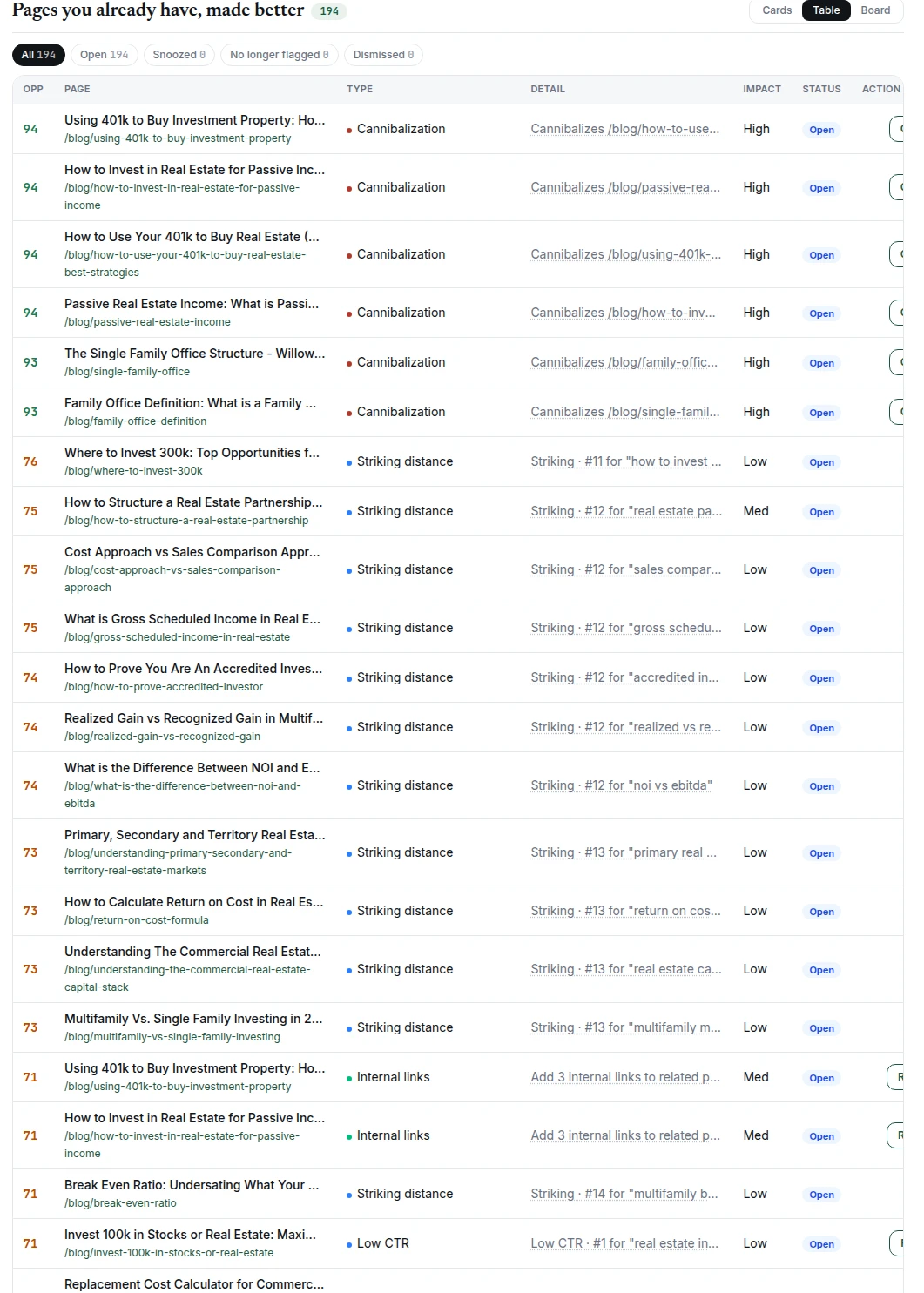
Pages that are underperforming in a way the data can see. They're grouped by signal, and each group opens with what's happening, what it costs you and the one thing to do:
| Signal | What it means |
|---|---|
| Cannibalization | Two of your pages compete for the same searches, so Google splits your rankings between them |
| Striking distance | Ranking 11 to 20, just short of page 1, where the clicks are. Small improvements pay here |
| Low CTR | Ranking in the top 10, but few people click. Usually a title and meta problem |
| Featured snippet | You rank for a question, but another site's answer sits in the answer box |
| Content decay | Clicks down against the previous 28 days, on a page that used to perform |
| Traffic but no engagement | People arrive, then leave without reading. The intro isn't delivering what the title promised. Needs GA4 |
| Loved but invisible | Pages your visitors love that search never shows: high engagement, almost no impressions. Needs GA4 and Search Console |
| Internal links | Pages with too few links pointing at them, or missing a link up to their pillar |
A group that found nothing this scan still shows, with where its data comes from, or which connection it needs.
Every opportunity carries Impact, Effort and Speed chips, plus a combined score used for ranking. That's so you can pick by what you actually have available. Sometimes that's the highest-impact item, and sometimes it's the three you can finish before lunch.
Each card opens the tool for its signal rather than dumping you into a full rewrite. Low CTR opens Rewrite title & meta. Featured snippet opens Structure the answer. Internal links opens Add Internal Links with the specific pages to link. Striking distance, Content decay, Traffic but no engagement and Loved but invisible open Content Refresh: confirm the keyword, then choose Content Refresh (edit the page as it is, with the in-editor tools; uses one content refresh) or Full Rewrite (new content from fresh research at the same address; uses one article). Cannibalization opens the page in Page Tracker.
Gaps: pages you don't have yet
Topics where competitors rank and you have nothing. These lead to a brief rather than an edit, and from there into the normal article flow.
Each card names the competitor that ranks best and its position. The Gaps export (Export, then Gaps: CSV or Gaps: Excel) adds the address of each competitor's ranking page, so you can read what you're up against.
Cards remember what you did with them. Once you create a brief from a Gap or AI fan-out card, the card moves under In progress at the bottom of its section, with a strip saying Brief created, the date and the brief's name, and Open brief in place of Create brief, so you don't start a second one. When an article is written from that brief, the strip changes to Article drafted with its review state, and the button opens the draft. The card leaves the list once the article is published. A brief or draft you made on the same keyword some other way, in Topic Research or through the MCP connector, counts too. The number beside each section counts only the cards still waiting for you.
Topic ideas: the next articles your site is missing
Each week Verand reads your pages, the searches they appear for, your drafts and briefs, and your Brand Hub, then suggests articles a specialist in your field would write next. Every idea builds on a page you already have: the card names it, the new article links to it, and the two build a topic together.
Before an idea is shown, Verand checks it against everything you already have (pages, drafts, briefs) and every other card on this tab, so the same topic never appears twice. Each idea shows the phrasing people search most, its monthly searches, the angle that fits your site, and the long-tail questions it should answer, which go into the brief as the article's sections.
Ideas with little recorded search data are kept with a Low search data badge and ranked last. Google's keyword data reports anything under about 10 searches a month as zero, but specific questions add up, face less competition, and often come from readers closer to a decision.
The list holds up to 30 ideas at a time and only grows: each week adds new ones and never repeats one you've dismissed. Left out, under the section, shows what the checks rejected and why, with Undo.
New ideas also come to you in the weekly Opportunities found email, below any new opportunities, or on their own in a week with none. It only lists ideas it hasn't sent before. Turn it off in Settings → Notifications.
AI fan-out: what the assistants search for
While answering one of the prompts you track in AI Visibility, ChatGPT, Gemini and Claude run their own web searches. Verand collects those searches, groups the ones that mean the same thing, and turns each group into a card: a page you could write that the assistants are already looking for. Searches one of your pages already answers are left out.
The title is ours; the quoted search is theirs. Assistants write searches for themselves, packed with keywords, so each card carries a readable title built from the search's own words, marked Suggested title. Directly under it is the search exactly as the assistant typed it, with which assistant typed it. Quote that line, not the title, when you tell anyone what an assistant searched. +N phrasings lists every search on the card, word for word.
Dismiss asks why: not what you sell, already covered (and by which page), or doesn't make sense. The card's searches then stay gone after the next scan, even when they'd otherwise be merged into another card.
Left out, under the section, shows everything that didn't become a card and why: searches your pages already answer, searches set aside (not about your business, outside your area, or a lookup of one company's product), and your dismissals, each with Undo.
Negative attributes: what AI says against you
The negative attributes AI assistants attach to your brand in their answers over the last 30 days, taken from the Sentiment tab in AI Visibility. Each card shows how many answers said it, which assistants said it, the pages they were reading, and the first step of the recommended fix.
See the recommended fix opens the attribute on the Sentiment tab, with every answer and page behind it and the full fix: context on your own page, a note to the author of another page, or a page you don't have yet. An attribute can be true, so the fix is context, not denial.
Dismiss hides one you've decided not to act on. It comes back if twice as many answers start saying it.
Preferred source on Google
Any reader can star a site as a preferred source on Google. Readers who star you see your links labelled and favoured in their own Top Stories, AI Overviews and AI Mode, and Google says people are twice as likely to click a preferred source. Only those readers see it; it doesn't change anyone else's results.
This section appears when Google's AI Overviews or AI Mode cited your site at least once in the last 28 days (from your AI Visibility scans, and only the Google engines on your plan) and you haven't set it up yet. It holds one card:
- Cited N×: the answers that cited you, split by AI Overviews and AI Mode, the same count the AI Visibility tab shows for those engines, with a four-week chart.
- See where your citations come from: which of your pages those answers cited. One answer can cite two of your pages, so the page rows can add up to more than the total.
- Set it up: the same three steps as the chip on Site Health. Open Google's page for your site, say whether it's listed, then add the button yourself or let Author Bio Pro do it.
Mark done, Skip for now and Dismiss are your answer to the same question Site Health, Brand Hub and Home ask, so answering here answers everywhere. Mark done means you're listed and nothing asks again. Skip for now asks again in 90 days (180 after the second time). Dismiss stops asking on every surface. Each has an Undo while you're still on the page.
Mentions & backlinks: pages AI already trusts
Pages AI assistants cite for your prompts that aren't yours: ranked lists, guides, community threads. Getting named on one, with a link, puts you on a page the assistants already read, and earns you a backlink from a page that's already trusted.
The card summarises the list. Tier sorts pages by what a mention there would do for you: Best bet, Worth a pitch, Long shot, and Can't be earned (competitor and government pages). Your outreach counts pages by the status you've set: To do, Pitched, Landed or Won't pursue. The number beside the section is the pages still worth pitching that you haven't acted on.
Open the Opportunity matrix takes you to the full list on the Sources tab, where you set each page's status and draft a pitch. See AI Visibility for how it works.
Working the list
Optimize cards carry three buttons:
- Mark done: the card moves to No longer flagged at the bottom of Optimize, and the same issue on that page won't come back
- Skip for now: hides the card for 14 days
- Dismiss: hides it for good
Gap and Topic idea cards have Skip for now (also 14 days) and Dismiss. On Topic ideas and AI fan-out, Dismiss asks why, and the dismissal shows under Left out with Undo.
Optimize also has Table and Board views beside Cards. Hover an item there to change its status, including Reopen for one you skipped, dismissed or marked done.
Your decisions survive re-scans. Dismissing something is permanent unless you undo it; the weekly rebuild won't quietly resurrect it.
Why this isn't the Issues tab
They overlap deliberately, and the difference is worth internalising.
Issues is exhaustive and about correctness. Every deviation from what a page should be, whether or not fixing it moves a number.
Opportunities is curated and about leverage. Something appears here only when there's market evidence of upside: a Search Console signal, a competitor gap, a ranking within reach.
The classic example: "add a structured answer block" is an issue on 49 pages. It's an opportunity on the 3 where Search Console shows you're one step from a featured snippet. Same fix, different question, and Opportunities exists so the three don't drown in the forty-nine.
Where an item appears on both tabs, each marks the crossover so you can see the other view.
Opportunities is never metered. The list is computed from data you already have, and it costs essentially nothing to produce. What's metered is the article or rewrite you spend acting on one, so the insight is always free and the consumable is what counts.