


 ChatGPT
 Gemini
 AI Overviews
 Perplexity
 Claude


 You
 Origin Investments
 Ashcroft Capital
These three tabs are three views over one thing: the deep full-site crawl. The crawl runs every two weeks, and everything on these tabs comes from its most recent pass. You never run them separately.
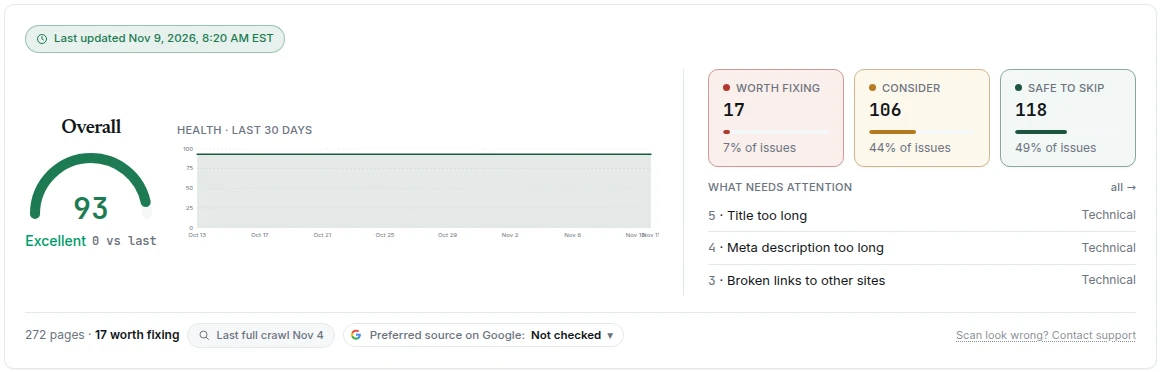
- Site Health: how the site is doing overall, and the trend
- Issues: everything that's wrong, grouped by problem
- Page Tracker: everything, page by page
Same data, three questions: how are we doing, what's broken, what about this page.
Site Health
The top of the tab is your overall score with a breakdown behind it: compliance, technical, content, AI Search, E-E-A-T and authority. Below that sit authority signals. Authority vs. competitors puts your domain authority, organic traffic and referring domains beside the competitors you track, and internal authority measures how well link equity flows through your own site.
There's a speed card showing average mobile and desktop scores from the crawl's Core Web Vitals sample. For a specific page's speed, use the Page Tracker. The sample is there to tell you whether the site is broadly fast, not to diagnose one URL.
Indexing shows how many of your pages Google has indexed, from Search Console's own URL Inspection: every page is checked about once a week, and new pages daily until they're indexed. A new page is one you published through Verand, or one Verand found in your sitemap, in the last 30 days. Below it are the pages that need attention and your latest new pages; View all pages opens the full list. Hover any answer under Google says for what it means and what usually fixes it. Each address opens the live page, with a copy button beside it, and Inspect opens that page in Search Console. Needs Search Console connected.
Re-run audit triggers a fresh crawl on demand rather than waiting for the schedule. You can run one every 6 hours per site, and 4 a month on Starter, 8 on Growth, 15 on Professional and 30 on Agency.
If your host refused part of the crawl, a chip by the score says how many pages were read and how many were refused, and the checks that need the whole site wait for a full crawl. See AI crawlers blocked by your host for how to let the crawler through.
What We Checked lists every check the last audit ran, including the ones that passed and the ones that didn't apply. The Issues tab only shows failures, so this is where you see that a clean check actually ran. Audit History shows how your overall score moved from one audit to the next, starting with your second.
Sourcing your articles
The card Back every claim with a source Google trusts runs one background pass over your articles. It matches each factual claim to an authoritative source, such as the regulators and official bodies your field answers to, highest-search-value articles first, and skips articles it has already sourced. Source my site tells you how many articles it'll cover and roughly how long before you start. Nothing changes on your site: the results wait under Sources ready to add on the Issues tab for you to review, and you can add each one yourself or, where your site is connected, have Verand add it.
Each article sourced counts against a monthly allowance: 30 on Starter, 75 on Growth, 200 on Professional and 600 on Agency, shared across your sites and reset with your billing period. Find sources for this article in a page's Page Tracker drawer draws from the same allowance.
Preferred source on Google
The chip at the bottom of the score card, Preferred source on Google, asks one question: does Google list your site as a source readers can prefer?
On Google, a reader can star a site as a preferred source. From then on, that site's links are labelled and favoured in that reader's own Top Stories, AI Overviews and AI Mode. It doesn't change anyone else's results or your rankings. Google says people are twice as likely to click a preferred source. Any site that publishes fresh content is eligible, but readers can only star you once Google lists you, and Google has no way for us to check that for you. So we ask.
- Open Google's page for your domain. It opens in a new tab.
- Does your site show up there? Answer Yes or No.
- After a Yes, put an "Add us as a preferred source on Google" button where readers will see it, like on your blog posts. Copy a plain link or Google's own button, or let Author Bio Pro add it to every post on WordPress. Author Bio Pro is included on Professional, Agency and Managed, and an add-on on Starter and Growth.
What's a Google preferred source? opens a short animation of how it works for a reader (a simple illustration, not Google's own screens), with both ways to add the button.
How often we ask: a Yes is remembered and the chip just shows when you confirmed it. A No means we ask again in 90 days, and every 180 days after a second No. Don't ask again stops it. Nothing is emailed. Your answer is per site and shared with the same question on Home (the first card under Grow) and in Brand Hub → Brand & Voice (next to Re-learn from your site), so you only answer once.
Verand can't see your site's templates, so after a Yes it shows the badge as unknown rather than guessing whether the button is on your posts.
Issues
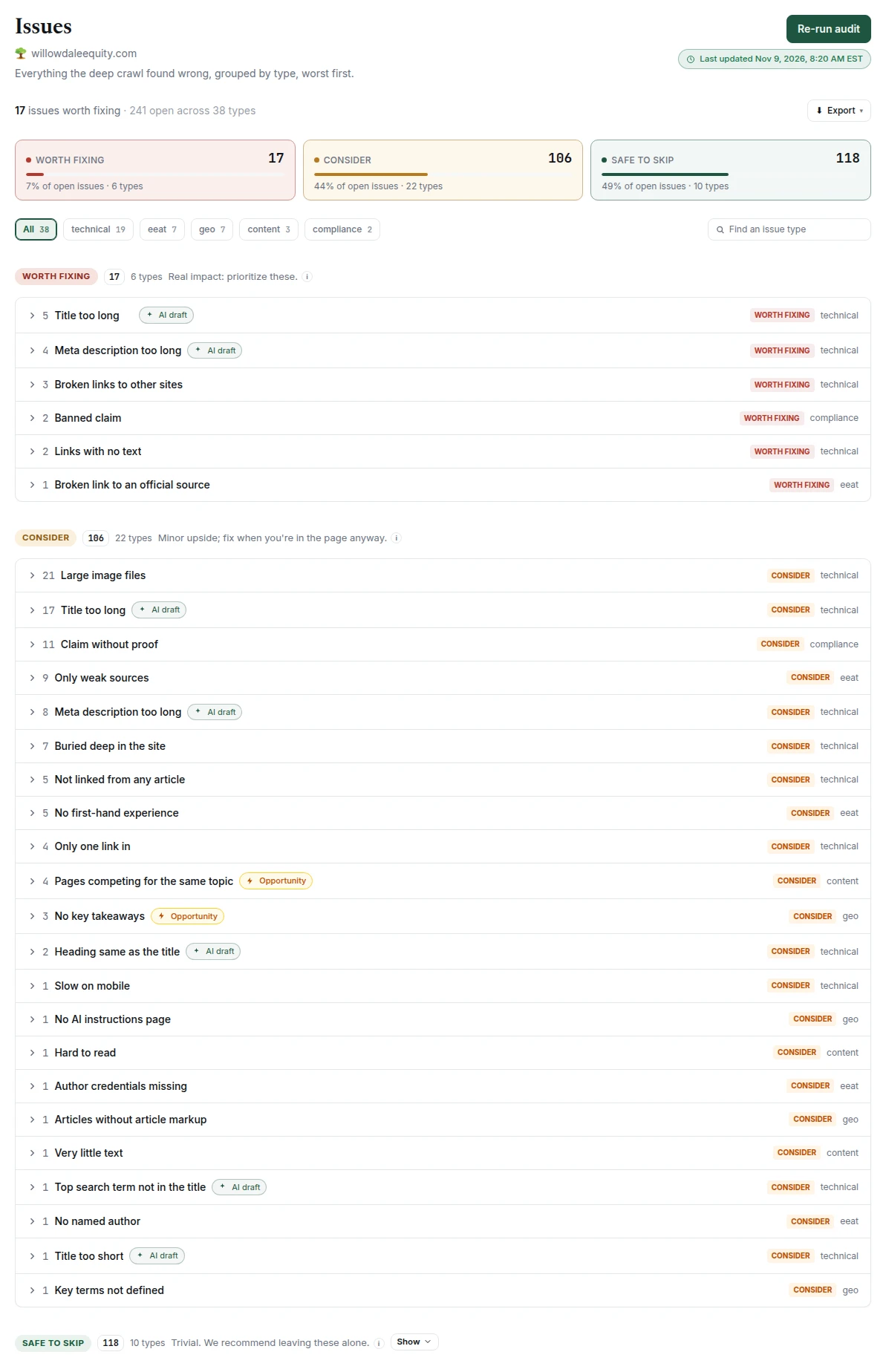
The thing worth understanding about this tab: it's sorted by whether a fix is worth your time, not by how alarming it sounds.
Issues are grouped into three bands:
| Band | What it means |
|---|---|
| Worth fixing | Real impact. Prioritise these. |
| Consider | Minor upside. Fix it while you're in the page anyway. |
| Safe to skip | Trivial. We recommend leaving these alone. |
"Safe to skip" is collapsed by default, and that's the point. Most SEO tools list every deviation from an ideal at equal weight, so you get 400 red flags and no idea which three matter. Verand calibrates the verdict first and lets severity recede. A title that's four characters over a soft limit is not the same problem as a missing title, even though both are "title length."
Issues are grouped by check type, not by page, so you see "34 pages missing a meta description" as one row rather than 34 separate ones. Each row carries specific guidance on what to do and why it matters. Where a fix can be applied automatically, the row says so.
Every issue falls into one of five categories: technical, content, GEO, authority, or compliance.
What Verand can fix from here. Beyond advice, many issues come with the fix itself: a broken link pointed at your closest live page (or a page you choose) or removed, alt text drafted from the image, words for an icon link or a "click here" link, one main heading kept and the extras turned into subheadings, a paragraph reworded or removed so it no longer makes a claim your compliance rules flag, a sentence AI answers can quote, your own experience woven in, the disclaimer your compliance pack requires, your sitemap added to robots.txt, an old year brought up to date, a moved official source pointed at its new address, a distinct title or description for pages that share one, page and site-wide schema, and llms.txt. You see the change before it's made. What each one needs from your connection is in Connecting your site.
Draft all with AI. On title and meta description issues, one click drafts a fix for every affected page in the background. Each draft appears beside its page for you to read and edit, and on WordPress you can tick the ones you want and apply them in one go. You can start it once a minute per issue; drafting one issue doesn't hold up another.
Pages that overlap. Near-duplicate pages, pages competing for the same search, and pages sharing a title or description are grouped together, with these choices:
- Plan the merge (for two to four pages): which page to keep, what to move into it, the redirects to add and the links to update. With Search Console connected, it keeps the page Google already sends clicks to; Keep this instead overrules that pick. Without Search Console, you choose. Open the kept page in the editor uses one content refresh.
- Suggest angles: a distinct angle, searches and a title for each page, so they stop competing.
- Mark as intended: for pages that are alike on purpose, like one page per place or product. They leave Issues and stop costing score. If they share a section, you can cover every page under it, including ones added later. For shared titles and descriptions, Verand asks Are these the same on purpose? first.
Plans and angles are advice: nothing changes on your site until you make the change.
There's no general dismiss button. Pages you mark as intended, and a noindex page you say is hidden on purpose, are listed under Marked as intended, below the issue bands. They don't count as issues or against your score, the next crawl leaves them out too, and you can undo each one there any time.
Export gives you either a summary by issue type or Every affected page: one row per issue on each page, with the full address, what's wrong there and how to fix it, ready to hand to whoever makes the change.
Missing canonical, missing social preview tags and pages set to noindex can be fixed from the Issues tab on WordPress with the Verand Connector: Verand shows exactly what it will set, and you apply page by page. For a noindex page it asks first whether the page is hidden on purpose; if it is, it's marked as intended and left alone.
No editorial standards page. Every site is checked for a page that explains who writes and reviews your content, where your facts come from, how you use AI and how you correct mistakes. If there isn't one, the issue drafts a starter page from your Brand Hub. It only says what your Brand Hub shows: it names a reviewer only if you've set a default Reviewed by, lists credentials exactly as you entered them, and leaves everything else (how you check facts, how fast you correct errors, any financial relationships) in [brackets] for you to fill in. Edit it right there, then create it on your site (see Creating the page below), and link it in your footer. Once it's live, a second check counts the articles and author pages that don't link to it, and new articles link to it from their byline. The page's address is under Brand Hub → Authors → Default byline; the crawl fills it in when it finds the page, and anything you type there stays as you set it.
No AI instructions page. Every site is checked for a page that tells AI assistants, and readers, the plain facts about your business: who you are, what you do and don't do, your products and prices, where you work, your people and credentials, and how you'd like to be described. Verand finds it by its address (such as /ai-instructions), by the words your site uses to link to it ("AI instructions", "For AI assistants") or by its title. It isn't llms.txt, which is a list of your key pages; this is a page of facts. If there isn't one, the issue drafts it from your Brand Hub and from the AI visibility facts you've marked right or corrected: a claim you corrected appears as your correction, and the wrong version never appears. It only states what Verand holds, lists credentials exactly as you entered them, and leaves everything else (prices, what you don't do, licence numbers) in [brackets] for you. Anything in your Brand Hub that your compliance rules don't allow is left out and named, and if those rules can't be checked at that moment it doesn't draft at all. Edit it right there, then create it on your site (see Creating the page below) or download it as Markdown or HTML. Keep it indexable and link it in your footer. An honest note: no AI company has said it reads pages like this specially. It's worth having because it's a clear page of facts on your own site that anyone, including an assistant, can quote.
Creating the page. Both pages open as text you can edit in place. Above it, Verand counts the [bracketed] items still to fill in, and Next [ ] jumps to each one. Nothing in the page talks to you: what to do with it is said above the editor, so nothing of ours ends up published. When it reads right:
- On WordPress, Create WordPress draft makes a draft page at /editorial-standards/ or /ai-instructions/, with a short title ("Editorial standards", "AI instructions"). Some themes add new pages to your main menu when they're published; take it out under Appearance → Menus if you don't want it there. Nothing goes live until you publish it in WordPress, so brackets may stay; any left are highlighted in the draft and Verand tells you how many. Come back later and the button follows what WordPress says: Update the draft while it's a draft, Update the live page once you've published it (Verand asks a second time first, and the button stays off while a bracket is left).
- On a GitHub site, Open a pull request adds the page to your repo for you to review and merge. It won't while any [bracketed] item is left, because merging puts it live. On a Markdown site it goes where your site keeps pages when Verand can tell (Hugo, Jekyll, Eleventy, Docusaurus, or an Astro site with a Markdown page to copy), and otherwise in with your articles, in your article layout; the pull request says which. If Verand can't tell how your repo builds pages, it says so and you copy the page in by hand.
- Not connected? Copy or download it, and connect WordPress or GitHub to create it from here next time.
Above the editor, a line says where the page stands on your site right now: not there yet, a draft in WordPress, a pull request open, or live at its address. Verand asks WordPress or GitHub each time you open the issue, so it's never out of date.
Before anything is sent, the text you edited is checked against your compliance rules, and a line that makes a claim they don't allow stops it, with the words quoted. Once the page is live, click Re-check now: Verand reads that one page, and if it's there on your own domain, closes the issue straight away, shows it in Brand Hub's Site files, and (for the editorial page) links new articles' bylines to it. It doesn't run a crawl. After Update the live page it re-checks on its own. Otherwise the next crawl finds it. You can also ask your AI assistant to do this through the Verand connector, after it shows you the final text.
When you apply a fix, Verand checks it worked. After each change it reads the live page again and marks the issue Fixed only if the problem is gone. If the page still shows the old version (a page cache can hold it for a few minutes), it says so and the next crawl confirms it. A few issues depend on the whole site, like a page nothing links to, so those are confirmed by the next crawl too. On a site built from a GitHub repo, the change goes live when your host rebuilds the site, so the issue shows Applied, confirming once your site rebuilds until Verand has re-checked it.
Page Tracker
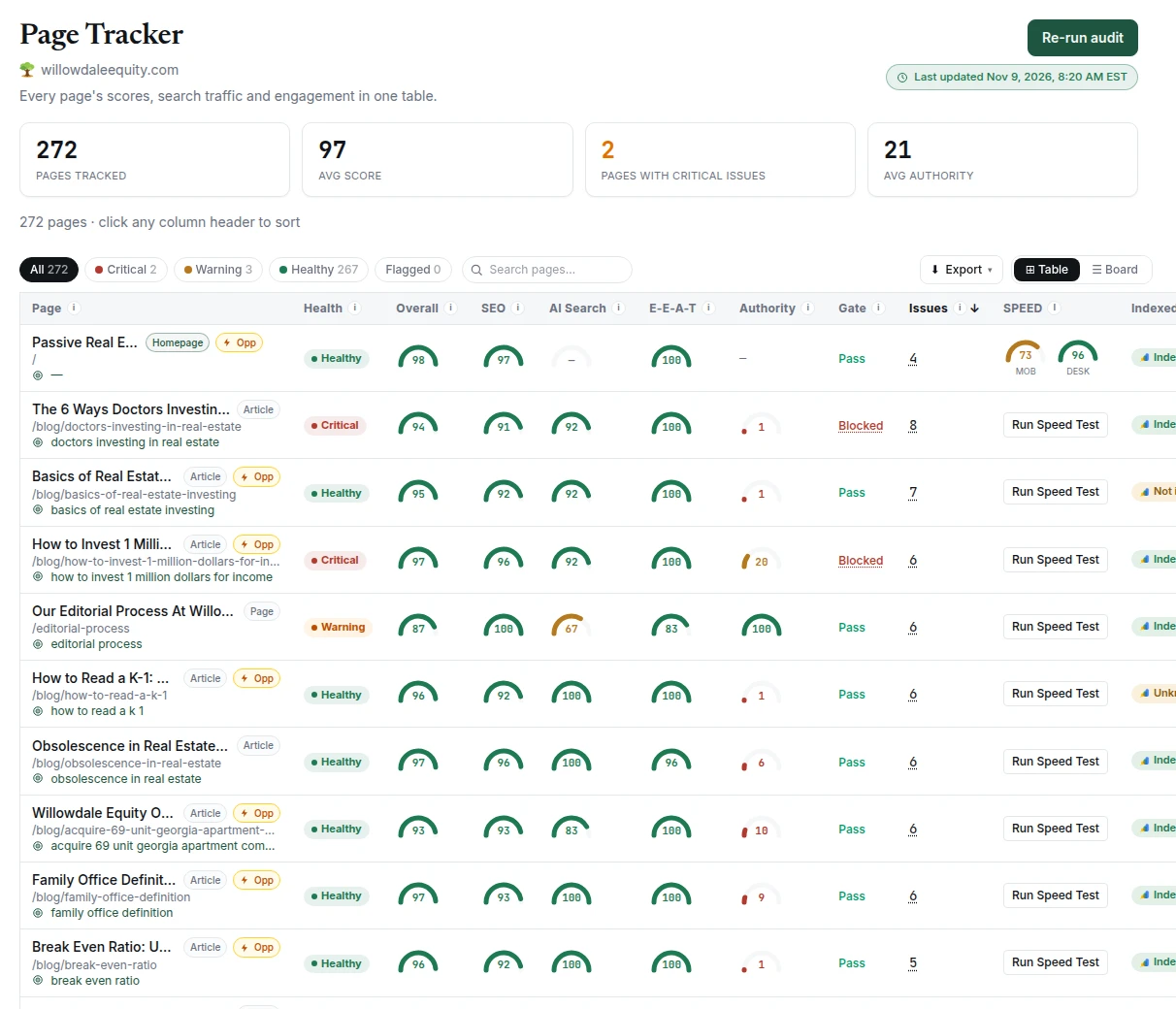
One row per page, with its scores, its issues and its status. This is where you go when you have a specific page in mind rather than a specific problem.
The Indexed column is Google's answer for each page (hover it for what it means), and the page drawer shows it beside the compliance result, with Inspect when the page isn't indexed and Check now to ask Google again.
The page drawer lists that page's issues with the same fixes the Issues tab offers for them: AI drafts of a title or meta description, broken links pointed at your closest live page, alt text, schema, key takeaways, links to add from your other pages, and the overlapping-pages choices (plan the merge, suggest angles, mark as intended). It's the quickest way to work through one page rather than one problem.
It's also where on-demand speed testing lives. Run Core Web Vitals against any page, as often as you like, with no allowance attached. That's the counterpart to the crawl's six-page sample: the crawl tells you whether the site is fast, the Page Tracker tells you whether this page is.
How Issues differs from Opportunities
These two tabs look similar and answer different questions.
Issues is about correctness. It's exhaustive: everything wrong with the site, whether or not fixing it will move a number.
Opportunities is about leverage. It's curated: a prioritised worklist of things where there's evidence of upside.
The same page can appear on both, and where that happens each tab marks the crossover. A missing answer block might be an issue on 49 pages, but an opportunity only on the three where Search Console says you're close to winning a featured snippet.
Rule of thumb: work Opportunities when you have an hour and want impact. Work Issues when you want the site to be correct.