


 ChatGPT
 Gemini
 AI Overviews
 Perplexity
 Claude


 You
 Origin Investments
 Ashcroft Capital
Every article Verand writes carries a byline: who wrote it and, if you name one, who reviewed it. The names, photos and credentials come from Brand Hub → Authors. Author Bio Pro, a WordPress plugin, puts the same authors on your live site.
Setting up an author
In Brand Hub → Authors, click Add author. The Add Author pop-up asks for:
- Photo: cropped to a square headshot. Without one, the byline shows initials.
- Name and Title
- Credentials: type one and press Enter, for example CFP, CPA or Esq.
- Areas of expertise and a Bio
- Linked profiles: LinkedIn, X, a bar listing, your firm page and so on.
These fill the byline, a bio pop-over and the About-the-author box at the end of the article. They also go into the article's schema as a Person, which is what the E-E-A-T checks read. A byline only shows credentials you've stored.
The default byline
Once you have an author, a Default byline card appears with two pickers:
- Written by: required.
- Reviewed by: optional (None is allowed), and never the same person as the writer.
New articles get these authors. To change them for one article, use the editor's Authors tab: the byline, author box and schema re-render and E-E-A-T is re-scored.
The default only applies to articles generated after you set it. An older article with no author offers a Use the default byline button rather than applying it silently, because it names a reviewer.
The same card has an Editorial standards page field, which new articles link to from the byline and author box. Your crawl fills it in when it finds the page; anything you type wins, and empty means no link.
The review line, and why it says what it says
A byline only says what's true given your Brand Hub.
With a named reviewer, the byline shows a Reviewed by card for that person, as long as they're an author in Brand Hub and not the writer.
Without one, the byline shows your Review statement. Verand's default is:
Every article is reviewed and approved by our team before it's published.
That holds because every way Verand puts this byline on your site needs someone on your team to approve the article first. The byline never describes what the review checked.
You can replace it with your own words, up to 240 characters, and you're then responsible for what they claim. Save it empty for no review line, or click Use the default to go back. It applies to new articles.
On WordPress, Verand leaves its own byline and author box out of the published post, because they rely on styles your theme doesn't have. The author credit is left to your site, which is where Author Bio Pro comes in.
Author Bio Pro
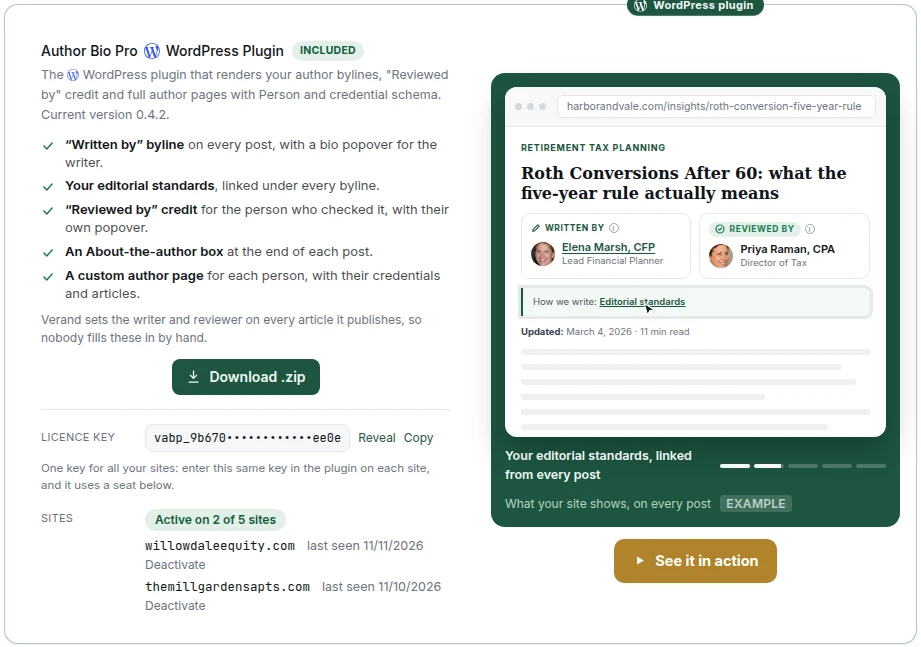
On your WordPress site, Author Bio Pro renders a Written by byline and a Reviewed by credit on every post, each with a bio pop-over, your editorial standards link, an About-the-author box, an author page for each person with their credentials and articles, and Person schema tying those credentials to their posts. It also adds FAQ, Key Takeaways, Citations, Table of Contents and Pillar Card blocks. Verand sets the writer and reviewer on every article it publishes, so nobody fills them in by hand.
Installing it. In Settings → Plan & Usage, click Download .zip and copy your licence key. In WordPress, go to Plugins → Add New → Upload Plugin, then paste the key into the plugin's Licence tab. One key covers all your sites; each site you enter it on takes a seat, and the account owner can Deactivate a site to free one. Updates appear on your Plugins screen like any other plugin.
Which plans include it
| Author Bio Pro | |
|---|---|
| Starter, Growth | Paid add-on: $139/yr on annual plans, $15/mo on monthly plans. Each unit covers 2 sites; add 2 more at a time. |
| Professional, Agency, Managed | Included, on every site your plan allows (5 on Professional, 25 on Agency). |
| No Verand account | Sold on its own at $139/yr per site, from verand.ai. |
Only the account owner can add it, from Settings → Plan & Usage → Add to your plan. The confirmation states the price first, and it's billed on your existing subscription, prorated. During a trial nothing extra is charged before your first payment. Move up to Professional and the add-on comes off your invoice with a prorated credit, and your key keeps working.
How the licence turns it on and off
- Never activated: nothing renders, and the plugin shows only its Licence tab.
- Active: everything works.
- Payment failing: your visitors see everything as normal. The plugin's settings and author profiles are locked until you update your card, but you can still choose a post's authors.
- Cancelled: it works until the end of the period you've paid for. Then bylines, author boxes, schema and badges turn off and editing locks. Author pages stay live, FAQ, Key Takeaways and Citations show as plain text, and Table of Contents and Pillar Card disappear. Nothing is deleted.
Re-adding it turns everything back on at the next page load, with the same key and settings.
Preferred-source badges
Readers can star a site as a preferred source on Google, which labels and favours its links in their own Top Stories, AI Overviews and AI Mode. A badge on your posts is how they find the star.
In the plugin, open Appearance & Editorial, find Preferred source on Google and tick Show a preferred-source badge on my posts. Two steps follow:
- Confirm Google lists your site: click Open Google's page and answer whether your site appears.
- Pick your badges: turn on any mix. Show the Google logo adds Google's official badge.
Badges appear on single posts only, once you've confirmed step 1 and picked at least one. They turn off with the rest of the plugin if the licence is cancelled.