


 ChatGPT
 Gemini
 AI Overviews
 Perplexity
 Claude


 You
 Origin Investments
 Ashcroft Capital
An article goes through four stages: a brief defines it, Verand generates a draft, you review and edit it, and you publish it. Nothing skips the review step.
1. Start from a brief
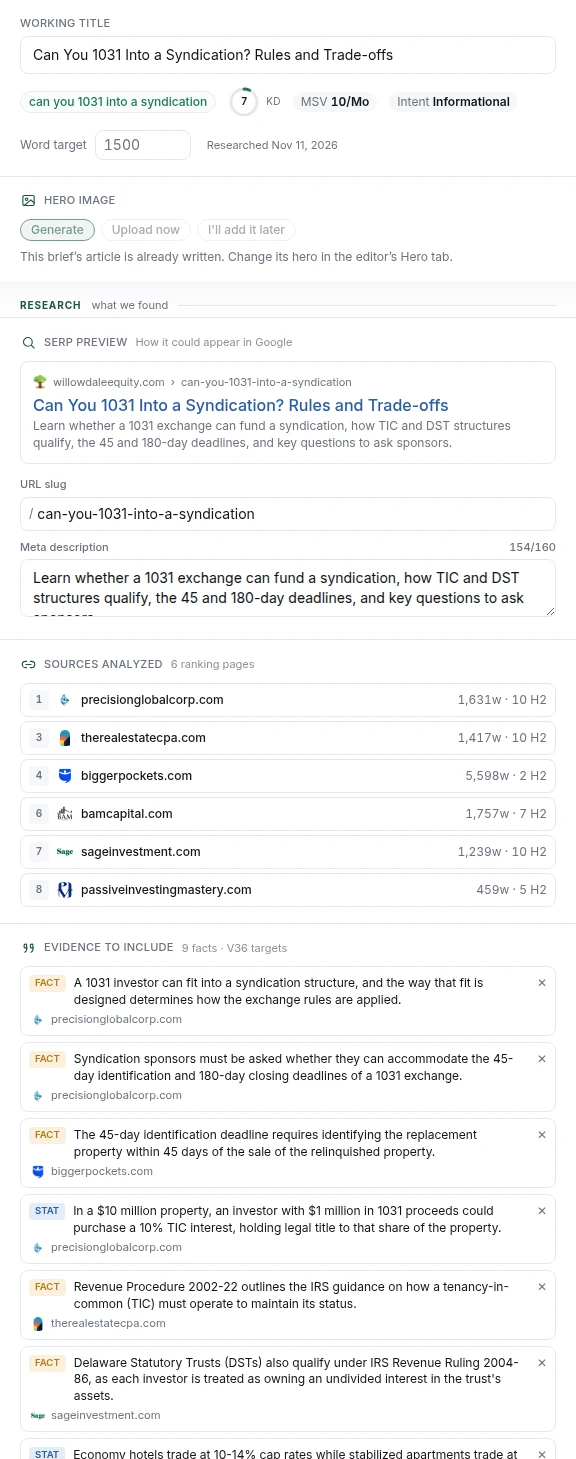
Every article starts from a brief: the target keyword, the angle, the questions to answer, the evidence to include, and which of your internal pages to link to.
You can get to a brief a few ways: from Topic Research (hunting for something new), from Opportunities (the system pushing you a prioritised worklist), or by writing one yourself.
You don't have to fill everything in. The competitive research fills most of it. Verand reads the pages currently ranking for your keyword and works out which terms and facts the winning results have in common.
Article formats
Every brief has a format, suggested from what the top 10 results actually are (you can change it under Format & intent):
- Guide: the default explainer.
- How-to: what you need first, then the steps in order.
- Comparison: two to four options side by side, with a comparison table near the top and a "choose this one if..." verdict for each.
- List: judged picks among named options, with an "Our picks at a glance" table, a "How we chose" section, and the same fields for every pick, including a real downside. An "[X] alternatives" list adds why people look for alternatives and how each pick differs from X.
Comparison and List articles are written from the options in the brief's Items section. Every fact about another company (a price, a limit, a feature) comes only from a page Verand fetched and checked, and anything it couldn't verify says "Not disclosed" rather than being guessed. If your own product is one of the options, it's listed first and makes its case, the other options still get an honest "choose this instead if..." line, and the article says plainly that the product is yours. On a regulated site (finance, law, medical, insurance, investing), a List doesn't rank your own firm: it's described in its own "Where [your firm] fits" section after the list, because ranking yourself first among your own profession is the kind of claim those regulators object to. Run Research items on the brief before generating; with fewer than two options the article is written as a Guide.
The same section sets the search intent, labelled with where it came from: measured, estimated, or from the top 10. Hover an intent to see what it means. It changes how the article is written: an informational article answers the question in its opening paragraph and doesn't sell, a commercial one puts the decision criteria up front with honest trade-offs for every option, and a transactional one leads with the specifics (price, eligibility, process) taken only from your evidence and facts.
If you run Research items again after the article is written and it finds better facts, open the article's Score & Checklist tab and use Update facts on the "Facts about the options" card. It updates only the table and each option's facts from the brief's latest verified research, shows you the change first, and doesn't use an article credit.
2. Generation
First, your experience. When you press Generate article, Verand may ask up to five questions in Add Your First-Hand Experience: places where something only you know would make the article stronger. Answer any you have material for and skip the rest, or choose Skip & generate without. Your answers are woven into the draft and saved to your knowledge base for future articles. A topic that doesn't need first-hand input gets no questions and generates straight away. The questions are set once per brief, so the brief's Experience to inject section and the MCP connector show the same ones, and answers you give in either place are kept.
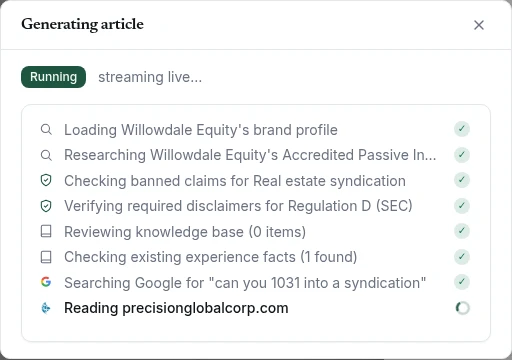
Generation is a twelve-step pipeline, and you watch it happen live rather than staring at a spinner. The status feed shows what it's actually doing, with your own details in it, not a generic progress bar.
What it works through:
- Loading your context: your brand profile, your audience, your knowledge base and your experience facts
- Loading your compliance rules: the packs for your industry, the banned claims, the disclaimers your governing body requires
- Live research: searching for your keyword, reading the pages that rank, cross-referencing sources
- Drafting in four passes: the opening and key takeaways, then the body with your experience facts woven in, then the FAQ, conclusion and sources, then assembly with disclaimers. Guides and How-tos get one extra pass when the body comes out thin, which expands the short sections and keeps every heading, link and source
- A table: nearly every article gets one (key facts, costs, steps, options compared), because tables are what AI answers and featured snippets lift. Its figures come only from your evidence, your own facts or a cited source, and a cell Verand can't back says "Not disclosed". The Table figures sourced check warns if a figure in a table has no source at the table
- Naming your product: if your Brand Hub has approved Products & Services cards or Knowledge Base items, the body can mention your product where a section explains something it does, in at most one section in three, using only what you've listed. A regulated site gets at most one plain sentence about a service, with no results, prices or invitations. Some compliance packs (Reg D offerings, real estate syndication, health insurance) don't allow it in the body at all, so your product appears only in the closing call to action
- Images: a hero image and any in-body images, with alt text. Heroes follow your hero templates in Brand Hub → Visual Guidelines: each template holds up to four reference images and can use its own image engine, which you pick after Verand draws your template with every engine side by side. In-body images follow your Body Image Style, which offers to match your hero template when the two styles differ. If you'd rather use your own hero, set Brand Hub → Visual Guidelines → Hero images to I supply my own (new articles then get no generated hero), or choose per article on the brief: Generate, Upload now, or I'll add it later. In the editor's Hero tab, Regenerate redraws the hero in Auto or any of your templates, and Upload your own (or Replace on the hero itself) swaps in your image at any time. Your own images are never charged.
- Verifying sources: checking each citation resolves and rating the quality of the domain
- Validation: running all 55 deterministic checks, scoring E-E-A-T, and stripping AI tells
Typical cost is well under a dollar per article, and it draws one credit from your Articles allowance.
3. Review and edit
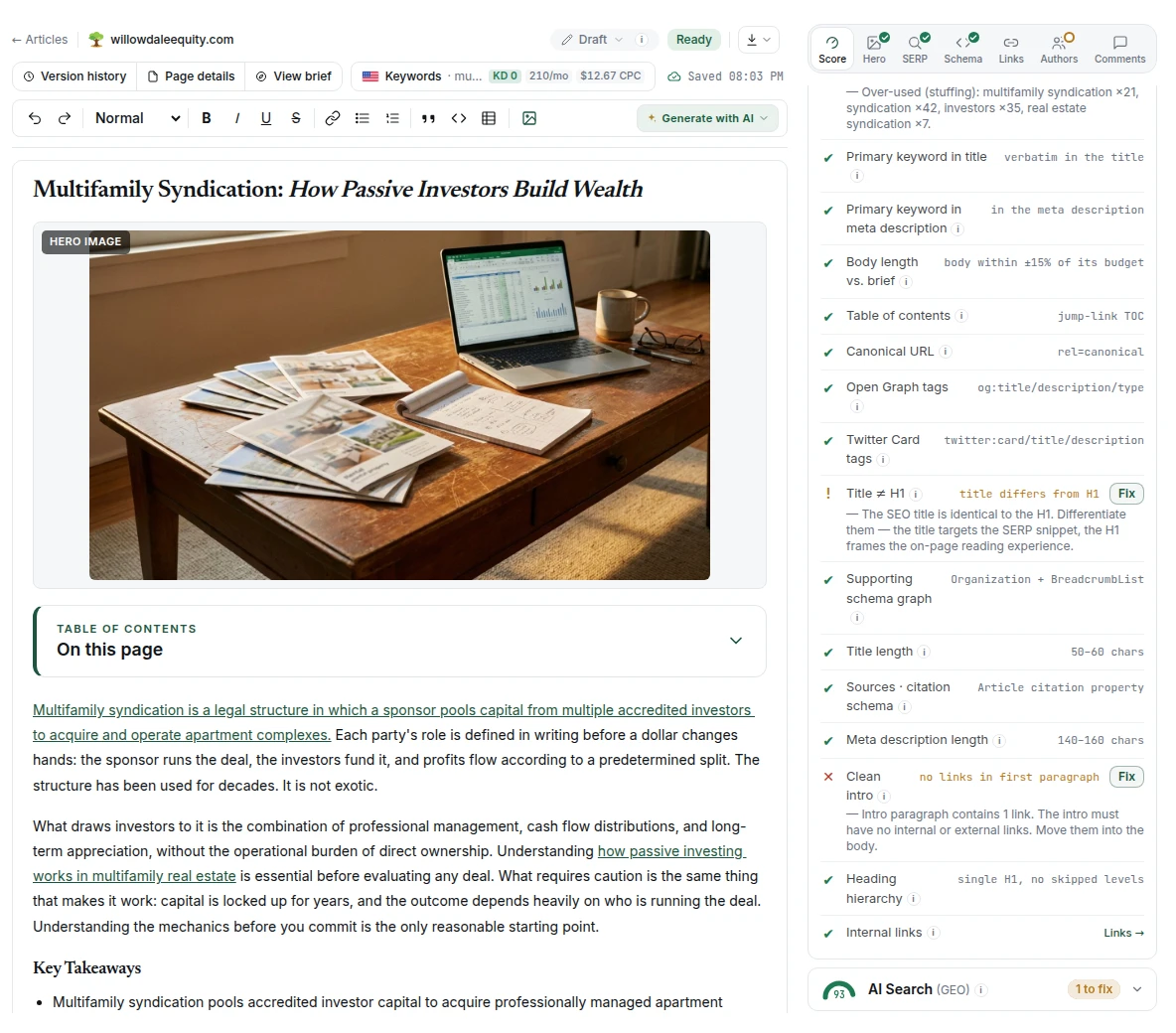
The draft lands in the editor with its Report Card already computed. This is where you spend your time, and where the value is.
The editor gives you:
- The Report Card: Overall plus the SEO, AI Search and E-E-A-T dials
- The Checklist: every check, pass or fail, with a one-click fix where one exists
- The compliance gate: Pass or Blocked, on every plan. Regulated sites are checked against their industry's packs; every other site gets a truth-in-advertising floor (no guaranteed results, no implied government endorsement)
- In-place editing: highlight a passage to rewrite, condense, expand or fix it, add a table or list with the AI tools, regenerate a title or meta description
Applying a fix re-runs the checks, so the score updates to reflect what you changed.
The small in-editor actions aren't metered. Rewrite a title as often as you like.
4. Publish
Articles move through these states:
| Status | Meaning |
|---|---|
| Draft | Still being written or reviewed |
| In review | Under human review |
| Ready | Reviewed and publish-ready |
| Published | Live on your site |
| Archived | Retired from the active estate |
Publishing is always yours. On WordPress, you choose Save as draft, Publish now or Schedule… from the editor. On a git-based site, publishing opens a pull request you merge. You can also line up Ready articles on a date in the Content calendar on the Articles tab. See Connecting your site for the details. Nothing publishes unless a person chooses it: there is no autopilot-to-live path, and that's deliberate: it's the whole positioning, not a limitation we intend to remove.
If the compliance gate is Blocked, publishing is genuinely prevented until it's resolved. See the compliance gate page.
Two other problems block publishing on every site, with no override, because the page would be broken for everyone who reads it: broken page markup (a tag cut off partway, or a link that swallows a heading, table or the FAQ) and an unfilled placeholder such as [PLACEHOLDER] or {{ }}. Verand checks the article again at the moment you publish, so a problem you introduce while editing is caught too.
Once an article is live, the Articles list shows Google's answer for the page under Synced, for example Indexed or Not indexed · day 4, from Verand's daily index check (it needs Search Console connected). Hover it for what the answer means and what usually fixes it.
Refreshing an existing article
Updating a page you already published is a different job with two paths:
- Content Refresh: loads your existing article into the editor and you drive targeted edits. Cheaper, and it draws from your separate Content Refreshes allowance.
- Full Rewrite: researches and regenerates from scratch. Costs about the same as a new article, so it draws from your Articles allowance.
How a Full Rewrite runs. It follows the same order as a new article: competitive research, then the experience questions, then the writing. You can close the page partway; when you come back, it picks up at the step it reached. If the research or the writing stops (it failed, timed out or was cancelled), the editor says which step stopped and offers Try again. Trying again re-runs only that step, keeps your interview answers, and is free: the rewrite is already paid for.
A Content Refresh copies the page's own article, not your site's template around it. On WordPress that's the post's content as WordPress stores it; on other sites it's the part of the page that holds the article, without the breadcrumb, author cards, sidebar and feedback form. On a pre-rendered GitHub site, blocks your site repeats inside its articles, such as a newsletter sign-up, share buttons or an author box, are left out of the draft and put back in the same place when you publish. On WordPress and Markdown-based sites they can still come across, so check the end of the draft. When Verand can't tell the article from the template and the draft holds text your site repeats on its other pages, the editor says so above the draft, and you should remove the template parts before publishing. A refresh draft copied before Verand did this, and that you haven't changed, is re-copied this way the next time you open the page as a refresh, at no charge. One you've edited is left as it is, with a note asking you to check it.
What this page needs
When you open a live page as a refresh, the Score tab shows a What this page needs card under your Report Card. It lists what Verand already knows about that page from your Opportunities and your last crawl: a search it nearly ranks for, a search where it's shown a lot but rarely clicked, a fall in clicks from Google, and the crawl findings your draft's own checks can't see (broken links, broken images, a title or description shared with another page). Each row shows where the finding came from.
Most rows have a Fix. A fix changes your draft, never the live page, and it goes through the same check as every other one-click fix: if it would make the compliance gate or a critical check worse, it isn't applied and the row tells you why. You can undo any fix from its row.
- Shown a lot, clicked rarely: rewrites the title and meta description.
- Close to page one for a search: adds a section answering it, written in your voice and checked against your compliance rules.
- Clicks falling: finds figures that look out of date and drafts each update from a source Verand fetched and quoted. No number changes until you tick it and apply it.
- Broken links: points each one at your closest live page, or at the official page that replaced a dead government source once Verand has confirmed the new address.
- Broken links to other sites: looks for another reliable source that backs up the sentence the link sits in, and quotes the line it found on that page. Nothing changes until you choose, link by link: use the new source, remove the link and keep its words, or leave it. When Verand can't find a source it can check, it says so and offers only removing the link or leaving it.
Review & apply at the bottom of the card lists every need with a fix, all ticked. Untick anything you don't want and press Apply: Verand runs them one at a time and shows the result on each row (done, with what changed; not changed, with the reason; or nothing found). The outdated-figures fix and the broken-links-to-other-sites fix end with drafts you confirm one by one.
These fixes are included in the refresh or rewrite you used to open the page. They don't use any more of your allowance.
When the refreshed page goes live (you update the live page, or the pull request is merged on a git-based site), the needs you fixed here close: an opportunity is marked resolved on the Opportunities tab, and a crawl finding closes once Verand sees the change on the live page, or at the next crawl. Needs you didn't fix stay open.
On WordPress, Update the live page replaces the page's content and keeps its address and status. If the draft has a new hero, the publish menu asks whether to Keep current or Use the new one as the featured image (the new one is the default). Structured data (JSON-LD) that was in the page's content is kept, with its FAQ questions and last-modified date brought up to date. Social preview text that copied the old title or description, and the schema Verand added, follow the new version too with the Verand Connector 1.7.0 or later (social text you wrote on purpose is kept); anything Verand couldn't update is listed in the result.