


 ChatGPT
 Gemini
 AI Overviews
 Perplexity
 Claude


 You
 Origin Investments
 Ashcroft Capital
Product cards tell articles what you actually sell, so an article can mention it accurately or know to leave it out. Verand drafts them from your own site, and none reaches an article until you approve it. They live on Brand Hub → Brand & Voice, in the Products & Services card.
Where drafts come from
After your first deep crawl, and after any crawl that finds a page it hasn't looked at before, Verand drafts cards from the stored pages. It picks pages that present one thing you sell (a product, feature, service, program or, on a store, a collection) and skips blog posts, legal, contact, about, pricing and comparison pages.
Each card is written from that page's own text. Drafts about the same offering are merged, and a card points to any Knowledge Base item that already covers it. A run drafts up to 20 cards; the rest come next time.
Drafts are checked against your compliance rules first. Any sentence your packs ban is taken out, and on a regulated site so is any return or performance figure. What was removed is listed on the card as Removed from the draft and never used.
You'll know drafts are waiting: Brand Hub shows a count in the sidebar, and Home lists them under What needs your attention. Drafting after a crawl doesn't count against any allowance.
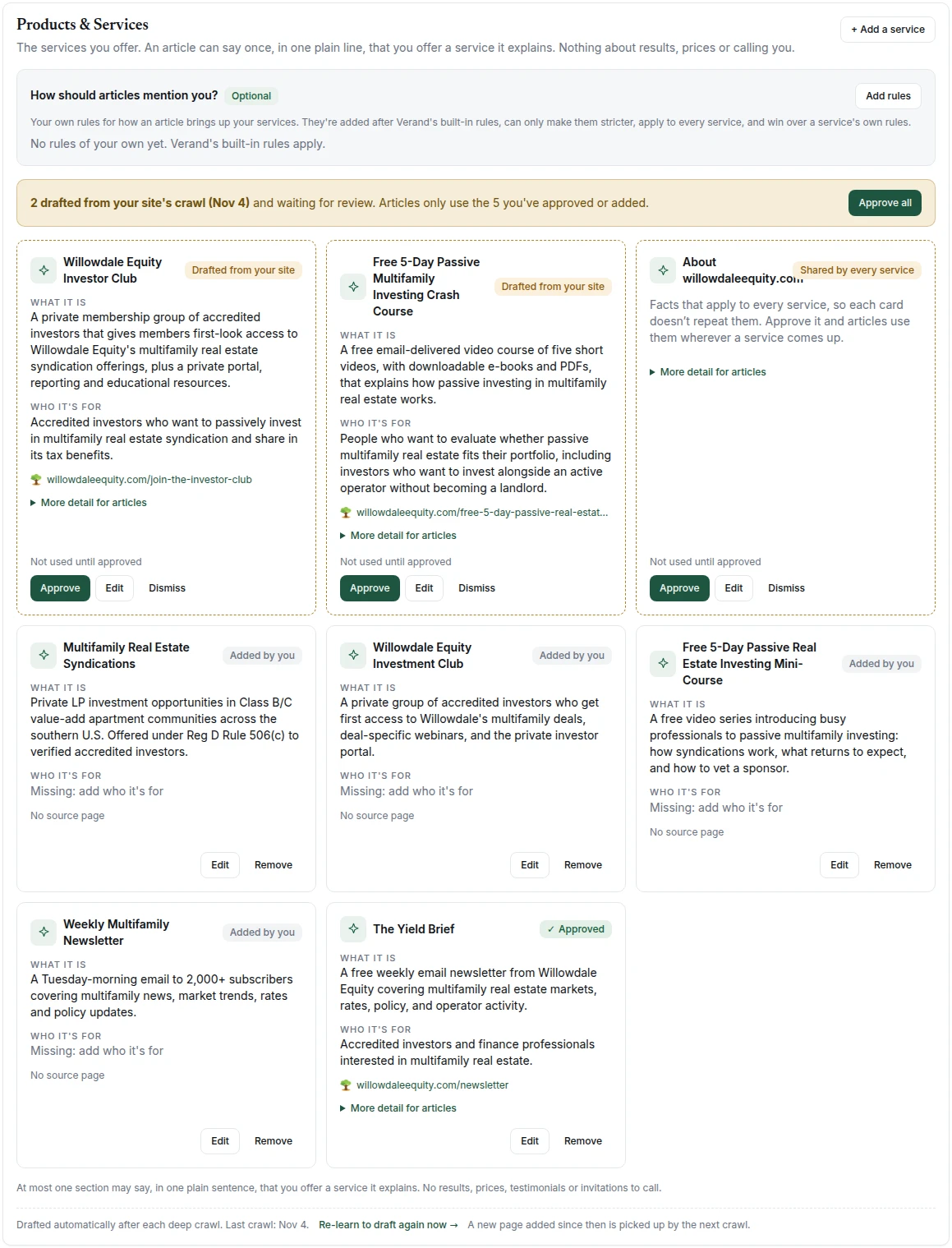
Approve, Edit or Dismiss
A draft is labelled Drafted from your site and Not used until approved. Each has three buttons:
- Approve: the card joins your list, marked Approved, and articles can use it from now on.
- Edit: opens Review Drafted Card to correct anything first. Its button is Approve, so saving approves the card.
- Dismiss: the draft goes, and that page won't be drafted again.
Approve all at the top approves every waiting draft at once.
Approved cards have Edit and Remove. To add one yourself, use the + Add a… button at the top (for example + Add a service). Cards you add are labelled Added by you, or Added in chat if added through the MCP connector.
What a card holds: a name, two one-sentence fields, and the detail articles may draw on. On most sites the two fields are What it does and What the customer sees; on a regulated site they're What it is and Who it's for. For depth, pick a Knowledge Base item under Full description, or write Details (articles use up to about 120 words). Articles never add a fact that isn't on the card or in your Knowledge Base.
Drafts that match a card you already have
Part of a card you have. When a draft looks like one feature of a product that already has a card, it asks Part of [card]? Add to [card] puts the page and what it says into that card. Keep separate leaves it as its own draft.
Left out. A draft that repeats a card you already have is set aside under Left out at the bottom of the card, marked Already your [card] card. Add to [card] puts its page and facts into that card instead of losing them. Add as draft anyway moves it back with the other drafts.
The shared-facts card
When the same facts appear across most of your products (shipping, formats, how ordering works), drafting puts them on one card named after your site, such as About yoursite.com, labelled as shared by every product or service. It isn't a product, so there are no fields to fill in. Approve it and articles use those facts wherever any product comes up.
How articles may name your products
Your site's compliance pack decides this, not a preference. Each pack sets one of three levels, and if your site has more than one pack, the strictest wins. A note under your cards describes the rule your site follows.
- Where relevant: where a section explains a task your product does, the article says so in one or two sentences: what it does and what the reader sees. It does this in at most one section in three, and the section still teaches the reader how to do it without your product. This is the level for sites outside regulated industries.
- One plain line: in at most one section, one plain sentence saying you offer a service that section explains. No results, prices, testimonials or invitations to call. Most regulated packs use this, including the financial adviser, attorney, CPA, medical, and life and property insurance packs.
- Not in the body: some packs don't allow an article to name your products or services in the body at all: US Regulation D, US Real Estate Syndication and US Health Insurance. Your cards are then used only in the article's closing call to action, and to stop an article describing something you don't offer. Approved cards are marked Closing call to action only.
At any level, an article only mentions what's on your approved cards or in your Knowledge Base. If nothing there fits a section, your products aren't mentioned.
Your own mention rules
For every product: the How should articles mention you? box above your cards. Click Add rules and write them in plain words, for example "Never compare us to a competitor by name". They're added after Verand's built-in rules, can only make them stricter, win over any card's own rules, and apply from the next article generated. Where products stay out of the body, they apply to the closing call to action only.
For one product: each card's edit form has an optional Rules for this… field, for example "only in articles for agencies". Your site-wide rules still apply and win if the two disagree.
Drafting again with Re-learn
To draft now rather than wait, click Re-learn on the Brand & Voice tab, or Re-learn to draft again now under the cards. Alongside re-reading your brand, it drafts from your last crawl for every product page that isn't already a card, a draft or dismissed. A page added since that crawl is picked up by the next one.
Drafting from Re-learn is limited to 10 runs a month, shared across your organization's sites, and one an hour per site. The line beside the Re-learn button shows how many are left. If you've used them all, Re-learn still re-reads your brand, and your next deep crawl still drafts anything new. New drafts never replace a card you have.