


 ChatGPT
 Gemini
 AI Overviews
 Perplexity
 Claude


 You
 Origin Investments
 Ashcroft Capital
Brand Hub is what every article reads before it writes a word. Your positioning, voice, products, experience facts, disclaimers, authors and image style all live here, and the generator draws on them every time it drafts, refreshes or rewrites a page.
Most of it was filled in from your site during onboarding. Here's what each of the six tabs changes in your articles.
Brand & Voice
What it holds: About Your Brand (your positioning), Brand Voice & Tone (including an Author Persona and forbidden phrases), Target Audiences, Strong Opinions, Products & Services, your Location, and your Industry Governing Body. Your industry shows here too; it's confirmed during onboarding, not edited here.
What it changes: articles are written in the voice and persona you describe, for the audiences you list, and never use a forbidden phrase. Strong opinions are worked in where they're relevant. Your location tells articles which area you serve, and your governing bodies are the regulators articles respect and reference.
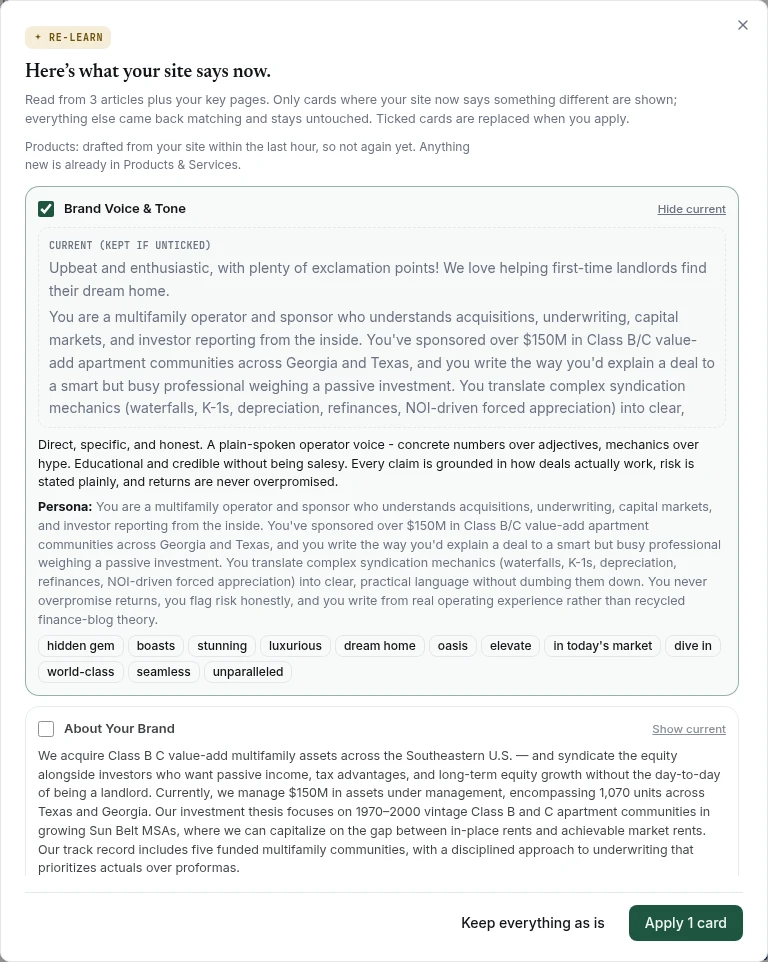
Re-learn re-reads your site the way onboarding did and drafts updates to About Your Brand, Brand Voice & Tone and Target Audiences. It also drafts new product cards (see below). Click it, then Start re-scan. It takes about a minute. Only cards where your site now says something different are shown. Each one has a Show current link so you can compare, and a tick box: ticked cards are replaced when you click Apply (the button says how many), and unticked ones keep their current text. Keep everything as is changes nothing. If nothing has moved, you'll see "Your brand profile still matches your site." and nothing is written.
You don't have to remember to do this. When a deep crawl finds your site has changed enough, it re-reads it for you and a banner appears: "Your site has changed since we learned your brand." Click Review updates to see the same proposals. Nothing changes until you apply them.
Add governing body lets you search for a regulator or add your own. If Verand doesn't have a rulebook for the body you add, it researches one and shows it here for you to review before it gates anything.
Products & Services
This card on the Brand & Voice tab holds what you sell. Verand drafts cards from your site after deep crawls, and articles only use the ones you've approved or added yourself. Product cards and approvals covers it in full.
Knowledge Base
What it holds: two kinds of material, side by side.
- Experience & Facts: first-hand outcomes, opinions, methodology, credentials and industry observations. Things only you know. Add one with Add fact. Each can carry a type, topic tags, and two optional fields: Use when and Don't use when.
- Knowledge Items: reference material. Click Add knowledge and choose Text (a note you paste or type), File (PDF, DOCX, TXT, MD or CSV, up to 5 MB) or Website URL (a page Verand reads).
What it changes: when an article is generated, Verand searches both for the facts and items closest to the article's topic and gives them to the writer. Facts are used where they fit and kept out where you've said not to use them. Items that aren't relevant enough to the topic are left out rather than forced in.
Every item tells you whether articles can use it. Notes show ✓ Indexed once saved. Files and links are read when you add them and show ✓ Read, or Not used in articles with the reason (a scanned PDF, a site that blocked us) and a Read again link.
Facts also arrive on their own: useful answers you give to an article's experience questions are saved here as facts, labelled with where they came from. There's no limit on facts or items on any plan.
Sources & Disclaimers
What it holds:
- Required Disclaimers: your own disclaimers, added with Add disclaimer, sitting under the ones your compliance packs require. A pack disclaimer can't be removed, but where the pack allows it you can Customize wording; the editor won't save until every phrase the pack requires is still there.
- Banned Claims: phrases that block a publish. Your packs bring their own list; anything you add with Add claim applies on top, across the whole site.
- Preferred Sources: sites the writer reaches for first when it cites something.
- Blocked Sources: domains it must never cite. This is a preference, not a compliance gate.
What it changes: disclaimers are appended to articles, and a banned claim you add blocks publishing exactly like a pack rule does. The compliance gate explains how blocks work.
Competitors
What it holds: the competitors Verand measures you against, each with a Tracked switch. The count at the top shows how many you're tracking against your plan's limit per site.
What it changes: every competitor you save becomes a blocked source, so articles never cite them, and a List article can include them as options. Tracked competitors are the sites compared with yours on Site Health and whose positions appear beside yours in Keyword Tracking. A competitor without a domain isn't monitored, and the row says so.
To find more, click Discover from SERPs, which reads the live search results for your topics. Two lists below the table suggest more: Named by AI engines alongside you and Discovered competitors. Click Add on any that fit, or Add competitor to enter one yourself.
Authors
Your author profiles, plus the Default byline: who new articles are Written by and Reviewed by. You can change both per article in the editor. A complete profile lifts the E-E-A-T score of every article that author bylines, and credentials show in the byline. Authors, bylines and Author Bio Pro covers this tab in full.
Visual Guidelines
Your logos, brand colors, fonts and type scale, plus the image settings: hero image templates, the Generate for me or I supply my own choice for hero images, and the style of the pictures further down each article. Visual Guidelines and images covers this tab in full.