


 ChatGPT
 Gemini
 AI Overviews
 Perplexity
 Claude


 You
 Origin Investments
 Ashcroft Capital
There are two ways to update a page you've already published. A Content Refresh edits the page you have; a Full Rewrite writes a new version from fresh research. Both open the page in the editor as a draft, and your live page doesn't change until you publish.
Which one to use
| Content Refresh | Full Rewrite | |
|---|---|---|
| What it does | Loads your page into the editor, researches the pages ranking for your keyword, and you make targeted edits | Researches, asks your experience questions, and writes the whole page again at the same address |
| Draws from | Your Content Refreshes allowance | Your Articles + Full Rewrites allowance |
| Use it when | The page is basically right: a figure is out of date, a section is missing, the title isn't earning clicks | The page is aimed at the wrong search, is thin throughout, or is built nothing like the pages that rank |
Start with a refresh if you're not sure. It's the cheaper line, it keeps the wording you already have, and the editor's tools cover most of what a slipping page needs. Plan sizes for both are in Plans, limits and your trial.
Starting one
You can open a page from:
- Page Tracker: open the page and choose ✦ Refresh or rewrite
- Opportunities: the Striking distance, Content decay, Traffic but no engagement and Loved but invisible cards (see Opportunities)
- AI Visibility → Topics: Improve your page →, when you already have a page on that topic
- Topic Research: when a topic you're researching matches a page you already have
Step 1, Did we get the keyword right? Use the keyword Verand detected, or type a different one. This is the keyword the research runs against.
Step 2, How much should we change this page? Pick Content Refresh or Full Rewrite. Each shows how many you have left this month. Then Start Content Refresh or Start Full Rewrite.
Opening the same page again reuses your draft while it's still Draft or In review. You get the draft you already started, not a second one, and a draft that's already been paid for isn't charged again. Page Tracker shows it as Draft in progress with Open draft →.
If you're out of the allowance it needs, Verand tells you which one and when you'll have more.
How a Content Refresh runs
Verand copies the page's article into a draft and researches your keyword while you watch: the live Google results, the competitors' pages, the facts and terms they share, and a compliance scan. When it's done, Research complete shows what it found. Press Review & edit →.
The Score & Checklist tab now holds the competitor comparison, the terms to cover and the facts to include. Close the gaps with the editor's tools (The article editor walks through them). If the research stops, The research didn't finish offers Try again, which is free, and you can keep editing meanwhile.
It uses one content refresh, when the draft is first created.
How a Full Rewrite runs
It follows the same order as a new article:
- Research for your keyword.
- Add Your First-Hand Experience: up to five questions where something only you know would help, when the topic calls for it. Answer what you can, or Skip & generate without.
- Writing, which takes a couple of minutes. When it's done, Review & edit → opens the new version.
It uses one article, when you start it. You can close the page partway; when you come back, it picks up at the step it reached.
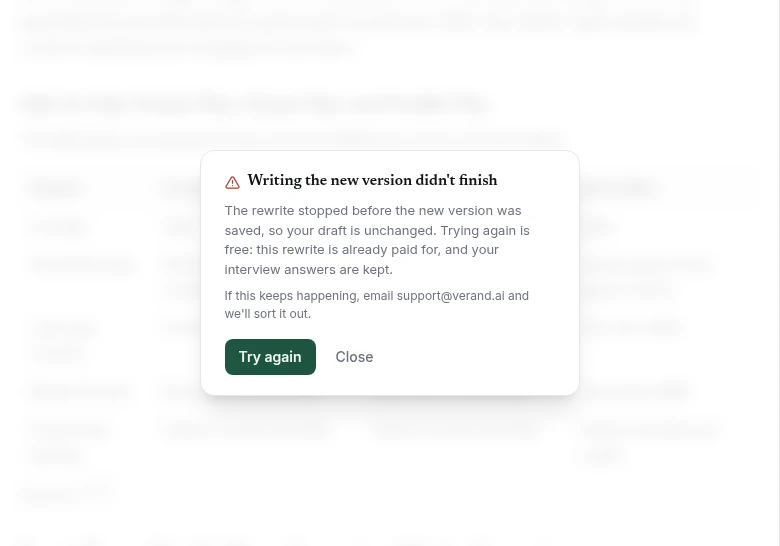
If it stops, the editor says which step: The research didn't finish or Writing the new version didn't finish. Try again re-runs only that step, keeps your interview answers, and is free, because the rewrite is already paid for. If the writing stops, your draft is left as it was. Starting a Full Rewrite again on the same keyword after a stop also reuses the one you paid for. A new Full Rewrite after one that finished uses another article.
Try again isn't offered when the problem is an allowance or a paused subscription, because trying again wouldn't change the answer.
What this page needs
On both kinds of draft, a What this page needs card sits under your Report Card. It lists what Verand already knows about the live page from Opportunities and your last crawl: a search it nearly ranks for, one where it's seen often and rarely clicked, falling clicks, broken links and images, and a title or description shared with another page. Generating an article covers each one.
Fix changes your draft, never the live page, and goes through the same check as every one-click fix: if it would make the compliance gate or a critical check worse, it isn't applied and the row says why. Outdated figures and replacement sources for broken links to other sites are drafted first, and nothing changes until you choose them under Confirm →.
Undo puts back exactly what that fix changed. If you've edited that part since, Undo won't overwrite your edit: it tells you, and you change it in the editor.
Review & apply runs every fix you leave ticked, one at a time, and shows each result. None of these fixes use any more of your allowance.
Publishing the update
Publishing replaces the live page and keeps its address. On WordPress it's Update the live page; on a git-based site it's a pull request. Connecting your site has the details.
Hero on the live page. If the draft has a new hero, generated or uploaded, the publish menu shows the page's current hero beside it. Choose Keep current or Use the new one; the new one is the default. The choice is saved as soon as you click, applies the next time you publish or update, and the page only ever shows one of them.
Your site's template
A refresh copies the page's own article, not the template around it (breadcrumb, sidebar, author cards, forms). On a pre-rendered GitHub site, blocks your site repeats inside its articles, such as a newsletter sign-up or share buttons, are left out of the draft and put back in the same place when you publish. On WordPress and Markdown-based sites they can still come across, so check the end of the draft.
When Verand couldn't tell the article from the template and the draft holds text your other pages repeat, the editor says so above the draft. If you publish with template parts still in it, Verand refuses, quotes what it found, and publishes nothing, so they don't end up twice on your live page. Remove them and publish again.