


 ChatGPT
 Gemini
 AI Overviews
 Perplexity
 Claude


 You
 Origin Investments
 Ashcroft Capital
Every article, new or refreshed, opens in the same editor: the draft on the left, a panel of seven tabs on the right. This page walks through the screen control by control, then the Articles list. How an article gets written is in Generating an article; what the scores mean is in Understanding your Report Card.
The header
The top row has ← Articles, your site's name, and one link that changes with where the article stands: View pull request while a pull request is open, Going live while your host rebuilds after a merge, and View live page once the page is live. On a Content Refresh or Full Rewrite, View live page links the page you're updating from the start.
The status pill moves the article through Draft, In review, Ready, Published and Archived. Next to it is the gate badge: Blocked, Below floor or Ready. A blocked article can't be set to Ready or Published.
Export (the download icon) saves the article as Markdown, HTML, Word (.docx) or PDF. PDF opens your browser's print dialog, where you choose Save as PDF. Exporting works on every plan.
The publish menus sit at the end of the row. Connecting your site covers WordPress and GitHub publishing.
The second row has these buttons:
- Version history: every saved version, newest first, with its check result. Restore loads an older one back as a new version, so nothing is lost and you can restore forward again.
- Page details: the Page title and Meta description, each with a character count, plus Regenerate with AI for the description. The Proposed slug is read-only, because changing a live page's address breaks links to it.
- View brief: the brief the article was written from, when it has one.
- Keywords: opens Target Keywords, the primary and secondary keywords with difficulty, volume and cost per click. They come from the brief, so you change them there.

Editing the draft
You type straight into the article. It saves a couple of seconds after you stop (the save state shows at the right of the second row), and Version history keeps a restore point at most every two minutes of editing.
Your scores don't change as you type. Press Re-validate at the top of the Report Card to re-run the checks on what's on screen. When the draft has changed since the last check, the button is highlighted and a note says so. The highlight menu's AI actions and one-click fixes re-run them for you.
The formatting ribbon stays pinned above the draft. Hover a table to add a row or column.
Some blocks are locked so they can't be broken by accident: citations, the sources list and the compliance disclaimer. Images have their own controls on hover: Full screen, Edit alt, Regenerate, Delete, and Replace on the hero. Click a link to open Edit Link, where you can change the address, Add nofollow, or Remove link.
Highlight any text for a menu of AI actions:
- Rewrite, Condense, Expand and Fix
- More: Improve writing, Proofread, Reformat, Professional, Casual, Simplify
- Ask AI: type your own instruction
- Comment and Image
Each of these edits is checked as soon as it lands. If it would break a compliance check, This edit breaks a compliance check tells you why and offers Undo the edit or Keep anyway.
Generate with AI, on the right of the ribbon, opens a menu that makes a Table, List, Quote or Infographic and inserts it where your cursor is. Highlight a passage first and the table, list or quote is built from it; Ask AI at the bottom of the menu opens the same instruction box as the floating menu's Ask AI, for the passage you've highlighted. The table, list and quote buttons in the formatting group are the plain ones: a blank table, a bullet list, a block quote. The image button opens Image, with Generate, Library (every image made or uploaded for your site) and Upload.
None of these tools use an article or a content refresh.
If the draft changes somewhere else, for example from an AI assistant through the MCP connector, a banner says This draft changed outside the editor. Press Reload to see it; if you keep typing instead, your next save replaces that change.
The seven tabs
Some tabs carry a corner badge: a red dot on Score when publishing is blocked, a green tick on Hero and Schema when they're in place (and always on SERP), and an amber ring on Authors when no writer is set.
Score & Checklist. From the top: the Report Card, then What this page needs on a refresh, the Keywords card, the date of the research with Refresh research (once a week per article), and the checklist: the compliance gate, each dial's checks, Editorial and Media. Under that sit the cards that help you close gaps: Topic Coverage, Structure & competitors, Experience & Facts, Evidence to Include, Citations and Questions to Answer, each with its own one-click action. An Internal links card at the bottom lists the links already in the draft.
On a refresh of a live page that Claude's search keeps finding in answers that cite other sites, What this page needs also shows Found by Claude, cited elsewhere, after the Search Console rows: how many Claude answers in the last 30 days found the page, and the sites cited most often instead. Compare ↗ opens the page Claude cited most for those answers, and See the answers opens the Found, Not Cited card on AI Visibility's Sources tab with this page open. It has no Fix and isn't part of Review & apply or the done count: what the winning page has that yours doesn't is your call.
Hero Image. The hero, its alt text, Edit alt, Regenerate and Upload your own. Visual Guidelines and images covers it.
SERP Preview. How your title, description and address look as a Google result.
Schema. The structured-data types on the page and the raw JSON-LD, for checking.
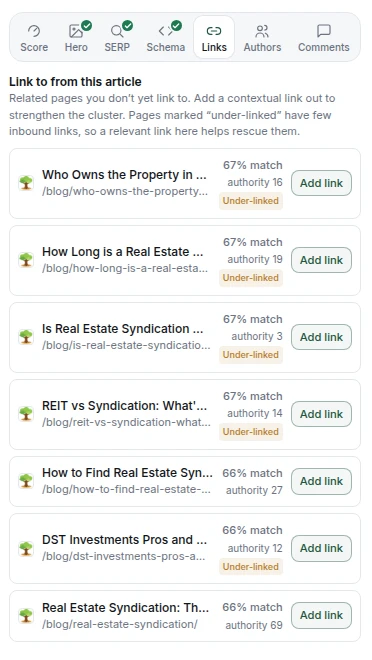
Links. Pages on your site related to this article that it doesn't link to yet, each with a match percentage. Pages with few links pointing at them are marked Under-linked. Add link shows where the link would go before you choose Accept & apply. The list fills after your first crawl.
Authors. Who the article is Written by and Reviewed by. Authors, bylines and Author Bio Pro covers it.
Comments. Notes for your team, never published. Comment on a highlighted passage or leave a general note, then filter by Open, Resolved or All comments. Click a comment to jump to its passage.
The Articles list
Each row shows the title with New Article or Content Refresh under it, then Status, Gate (Pass or Blocked), Score (dials for All, SEO, AI and EEAT), target keywords, tags, Sync, assignee, due date and created date. Once a page is live, Sync shows Google's index answer, for example Indexed or Not indexed · day 4.
Above the list: search, filters for status, tag and source (New Articles or Content Refresh), sorting, and a Table or Board view. Content calendar schedules Ready articles; Connecting your site covers it. An article being generated shows at the top with Watch →.
Select rows to change status, assignee, due date or tags in bulk. Delete removes an article and its versions for good; its brief stays in Topic Research.